PrintGrid Pro Web vs. Desktop: Which Should You Use?
Arrange cards online with Web, then print the PDF with Desktop Free on Windows. Compare the workflow, trial credits, and optional Desktop Pro layouts.
Use Web to arrange your print sheet online. Use Desktop to print a prepared PDF on Windows. Desktop also has layout tools, so you can start and finish there if that suits you better.

Which app should you open?
- You have one invitation or tag design: use Web to arrange copies on a larger sheet and download the PDF.
- You already have a complete sheet PDF: use Desktop Free to print the original PDF. No new layout is needed.
- You want to arrange and print in one Windows app: use Desktop's layout tools. Output that uses Pro layout features needs Desktop Pro.
The apps are related, but they are not identical. Web ends with a PDF download. Desktop connects the file to the printer and its driver settings.
1. Arrange your finished design in Web
Keep the invitation or card you made in Canva, Photopea, Photoshop, Illustrator, or another design tool. Add the exported design to PrintGrid Pro Web, then set its finished size, paper size, and number of copies.
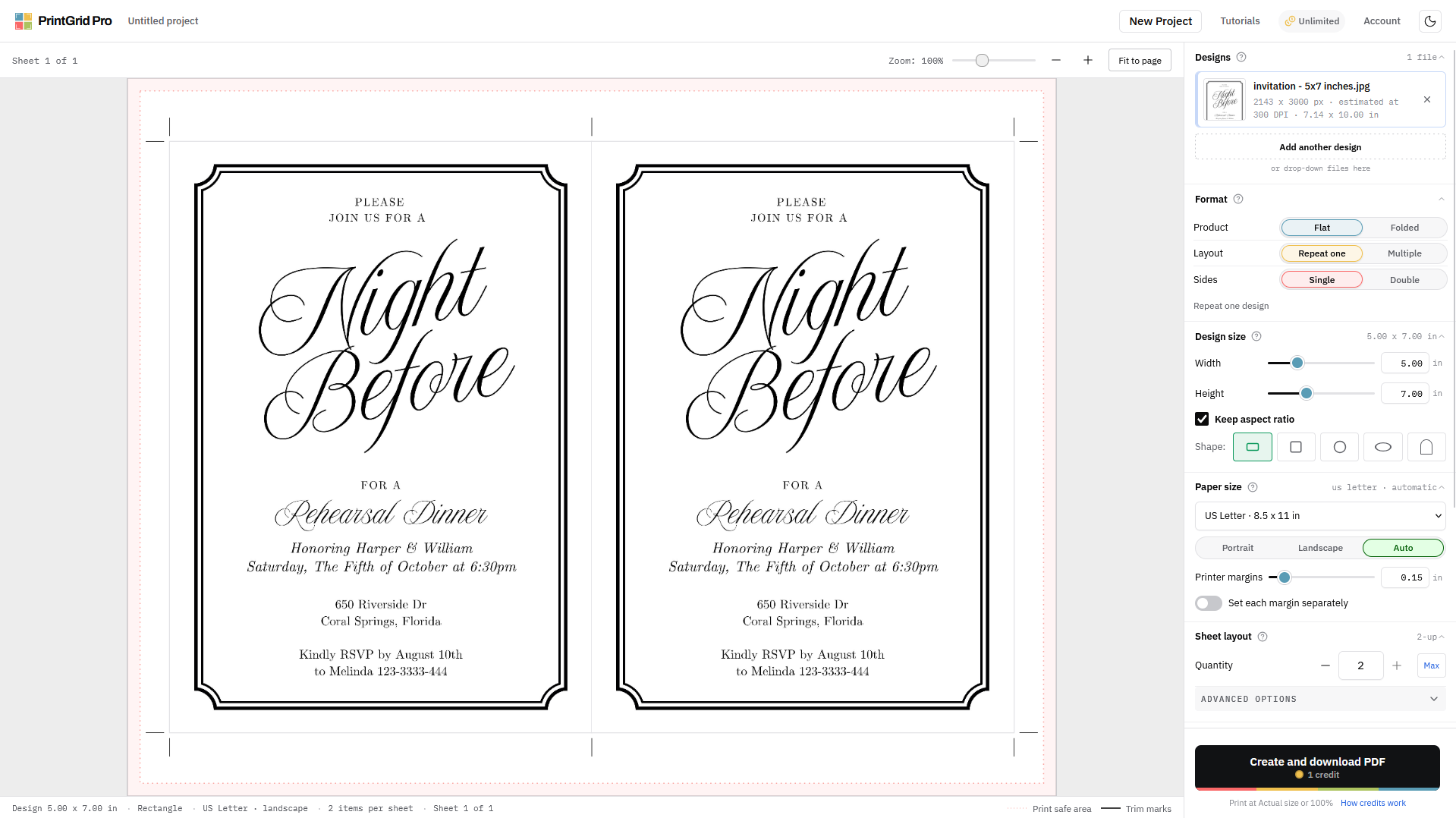
Check: the preview has the right number of cards at the intended size. For folded or double-sided work, also check the panels or front and back before creating the PDF.
2. Download the PDF and keep its layout
Select Create and download PDF after checking the displayed credit cost. Open the downloaded file and inspect its pages.
If one PDF page already contains two invitations or ten tags, those copies are already arranged. Do not repeat that page two or ten times on another sheet when printing.
Check: the PDF's page size matches the paper you intend to load. The PDF is the handoff between Web and your printing application.
3. Print the prepared PDF with Desktop Free
Open the complete PDF in PrintGrid Pro Desktop for Windows. Original-PDF printing is free, without a subscription, sign-in, or online license check.
That includes cards and cutting marks already inside the PDF. Printing those existing contents is not the same as asking Desktop to create a new multiple-card layout or new guides.
- Select your printer and the paper size used by the PDF.
- Use Actual size / 100% to preserve the page's intended dimensions.
- For a double-sided job, check page order and the duplex edge supported by your printer.
- Review any warnings, then print one test sheet.
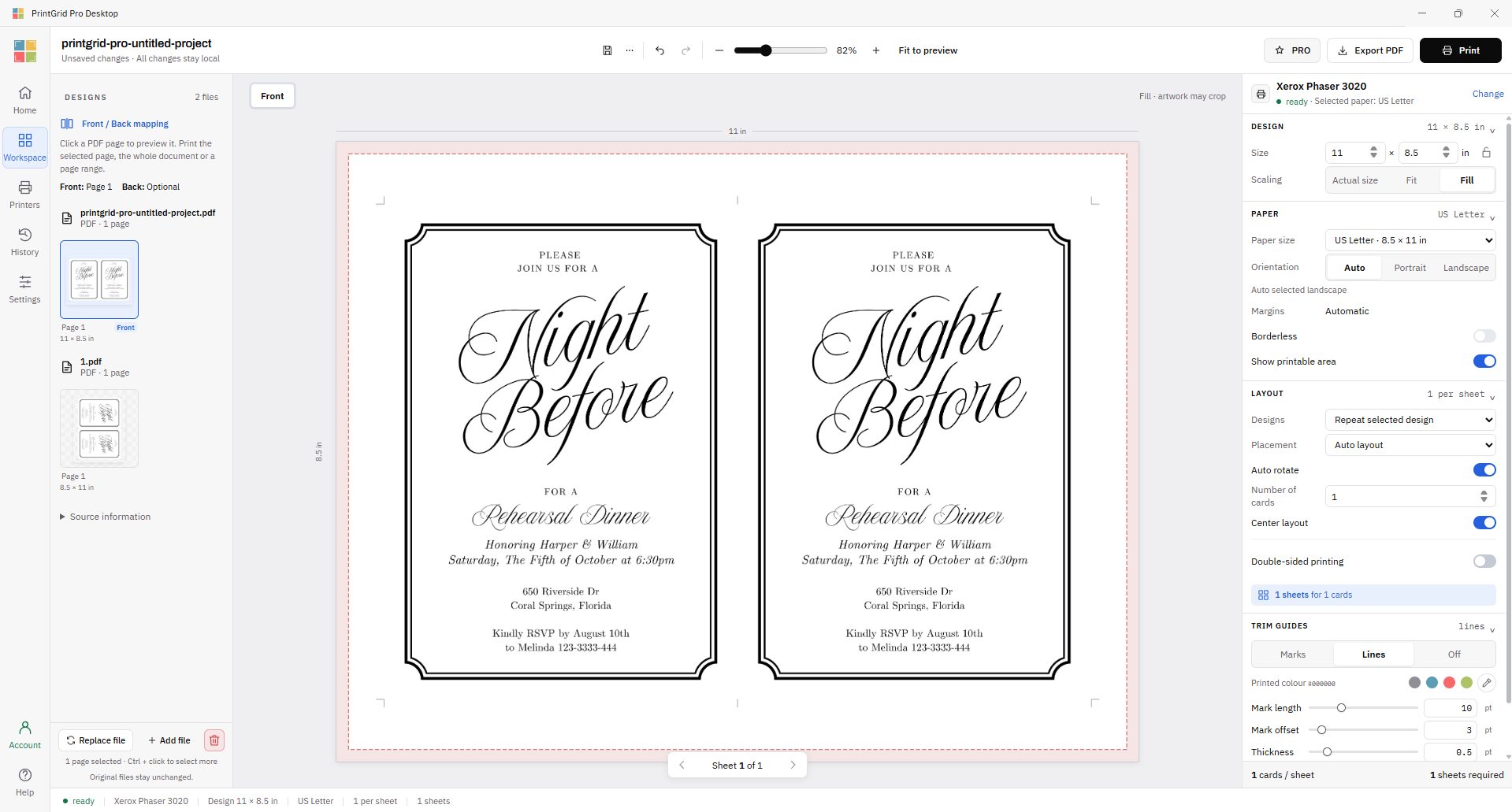
Measure one finished card before printing the batch. If it is too small, check for Fit, Shrink, the wrong paper size, or an extra multiple-pages-per-sheet setting. Driver options and duplex support depend on your printer.
What is free, and when do you need Pro?
- Web: eligible new accounts receive three one-time trial credits. The trial does not renew. After the allowance, PDF exports use purchased credits or an eligible subscription. Check the cost shown before download.
- Desktop Free: print original PDFs. Editing and previewing layouts are also free, but that does not make every layout output free.
- Desktop Pro: export or print new multiple-card layouts and Pro cutting guides created inside Desktop.
Eligible website subscriptions include Desktop Pro. Credit packs alone do not. See current plans before choosing a paid option.
You do not have to use both apps
Already have a prepared PDF? Start in Desktop. Prefer working online? Arrange in Web, then print with Desktop or another suitable PDF application. Prefer one Windows workspace? Arrange in Desktop and use Pro when the output needs it.
Remember: arranging cards and printing a prepared PDF are two different tasks. Choose the app for the task you need now.