How to Print Two 5x7 Invitations on One Letter-Size Sheet
Arrange two 5x7 invitations on US Letter paper, download the PDF, and print it at actual size. Includes a free Windows Desktop printing option.
Fit two 5 x 7-inch invitations on one US Letter sheet without shrinking the cards. Arrange the sheet in Web, download the PDF, then print at actual size and trim.

Keep the design you already made
Already have an invitation from Canva, Photopea, Photoshop, or Illustrator? Export the finished design as a PDF, PNG, or JPEG. You do not need to redesign it or manually place two copies in a new design document.
Your design app makes the invitation. PrintGrid Pro arranges copies on the larger print sheet. This guide uses the same black-and-white rehearsal dinner design throughout.
What you'll need
- The finished invitation file, intended to print at 5 x 7 inches.
- US Letter paper: 8.5 x 11 inches, in a type and weight your printer supports.
- A suitable printer, a ruler, and a paper cutter.
- PrintGrid Pro Web for the layout; a PDF printing app for the downloaded sheet.
1. Add your finished invitation
Open PrintGrid Pro Web, sign in, and upload the invitation file. Choose Flat, Repeat one, and Single. These settings repeat one design and prepare only the front of the sheet.
Check: your invitation appears in the preview. Names, dates, and the full design should be visible. If the design is wrong, replace the file before arranging it.
2. Set the card size, then the paper size

Under Design size, use Width 5 in and Height 7 in. Keep Keep aspect ratio on so the artwork is not stretched. If the ratio does not match, check the original file instead of forcing it to fit.
These numbers describe one finished invitation, not the sheet. A JPEG's estimated size may be different, so confirm the intended print dimensions here.
- Paper size: US Letter, 8.5 x 11 in.
- Orientation: Auto. This example becomes landscape.
- Quantity: 2.
- Trim Guides: Marks. The short lines outside the artwork mark the trim positions.
The supplied example shows 0.15 in margins, 0 gap, and 0 bleed. These are the pictured settings, not a promise that every printer supports them. The white background in this example does not need artwork extended beyond its edges.
Use margins that leave the artwork and cutting marks within your printer's printable area. For artwork that reaches the cut edge, check its bleed separately; do not copy this example's zero-bleed setting blindly.
Check: Design size still reads 5 x 7 in and Sheet layout shows 2-up. If only one fits, check orientation and spacing. Do not shrink the invitation just to make two fit.
3. Check the whole sheet
The landscape Letter sheet below holds two upright invitations side by side. Together, the cards occupy 10 x 7 inches on an 11 x 8.5-inch sheet. The remaining space must accommodate margins and guides.
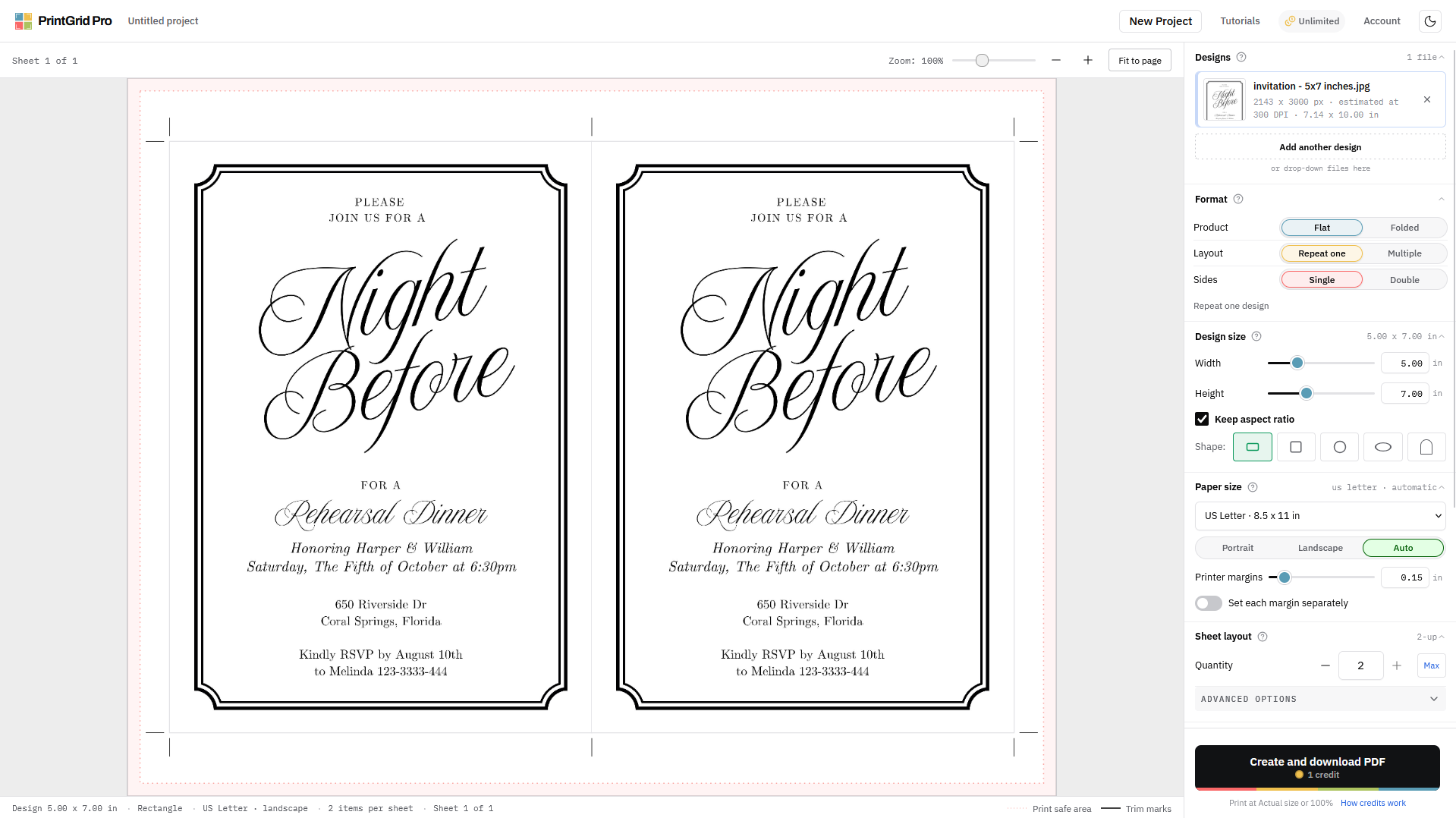
Check: both invitations are complete, the borders are not cropped, and the trim marks stay inside the printable area. The preview should show one sheet, not two.
4. Download the arranged PDF
Click Create and download PDF. Review the export cost shown before continuing. The Web app uses trial credits or paid access; it is not an unlimited free-export service.
Open the downloaded PDF and check that it contains the same two invitations on one Letter-size page. Keep a local copy for printing.
Check: this PDF is now a complete sheet, not a single invitation waiting to be arranged again.
5. Print that PDF for free in Desktop
On Windows, PrintGrid Pro Desktop can print your downloaded sheet as an original PDF for free, without a subscription or sign-in. You can also use another suitable PDF printing app.
- Open the downloaded full-sheet PDF in Desktop. Select your printer and matching US Letter, landscape paper.
- Set Scaling to Actual size, not Fill or Fit. Keep one PDF page per sheet. The two invitations are already inside that page.
- Do not add new cutting guides around the full PDF page. Select Off under Trim Guides when the PDF already includes the marks you need.
- Keep one original PDF page per side. Do not apply another two-pages-per-sheet layout.
- Check the preview, paper, and printer warnings. Print one test sheet before the full batch.
Check: the print preview still contains two invitations, not four smaller ones. If a Pro prompt appears, stop and check whether Desktop is creating a new layout instead of printing the PDF's existing page.
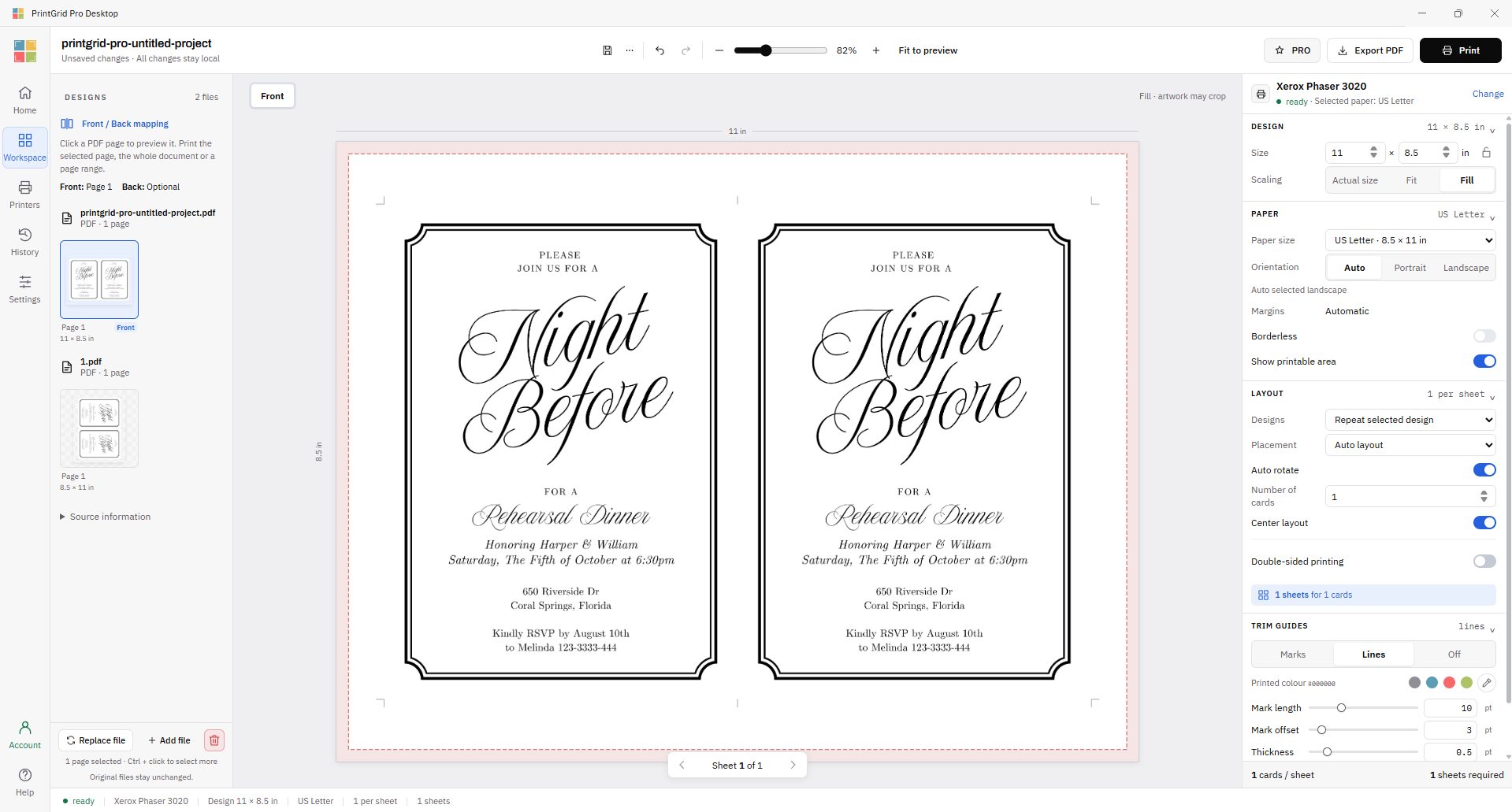
Optional: start from the original design in Desktop Pro
If you prefer to arrange the invitation inside Desktop instead of Web, you can create the two-card layout there. New layout output and new cutting guides require Pro. Printing the existing contents of your downloaded PDF is a separate, free option.
6. Trim and check your invitations
Use the small trim marks to line up each cut, not the invitation's decorative border. Follow your cutter's safety instructions and keep fingers clear of its blade. Check one trimmed card before cutting the remaining sheets.
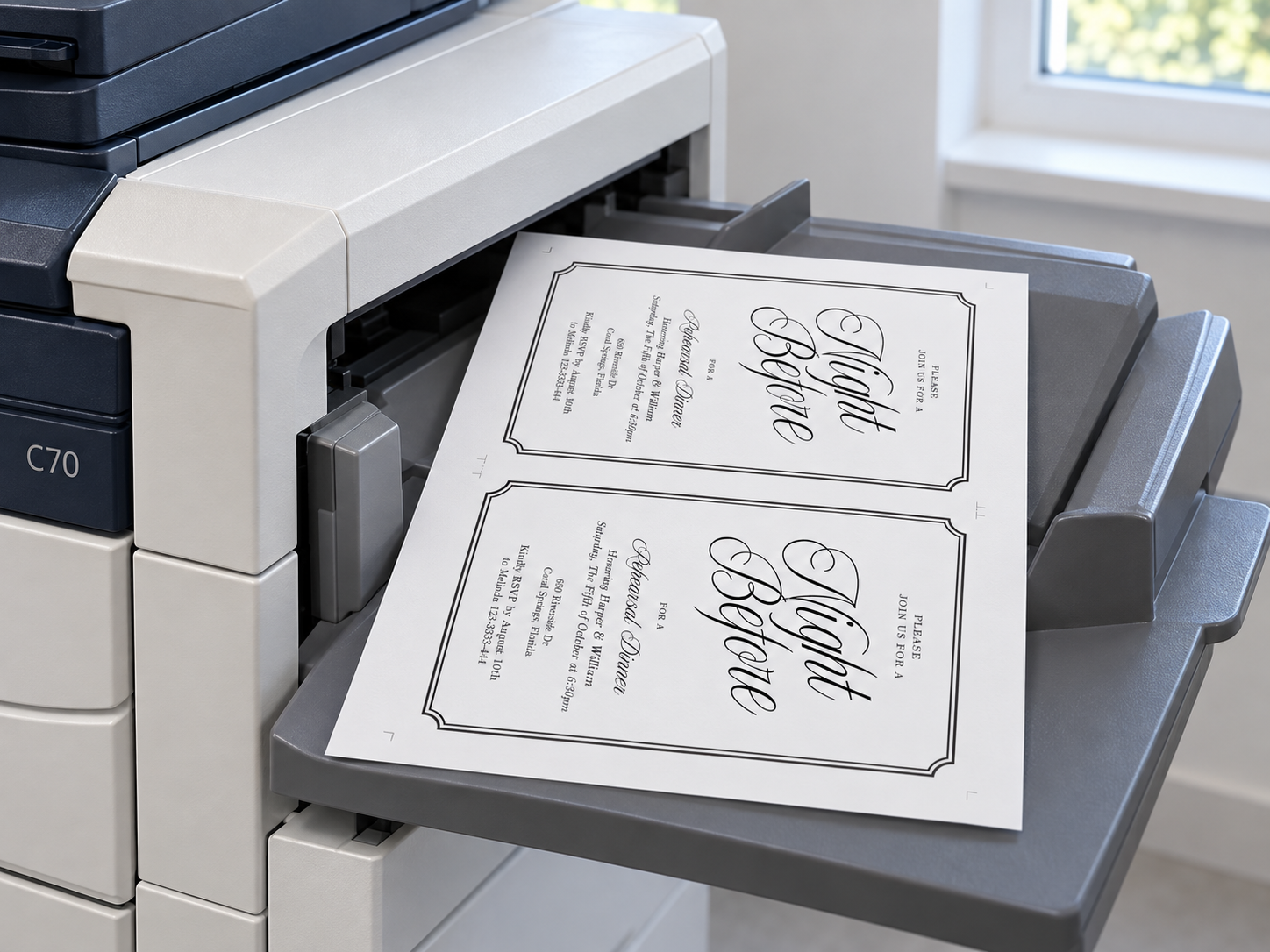
1. Print one sheet. Check both invitations and their trim marks. 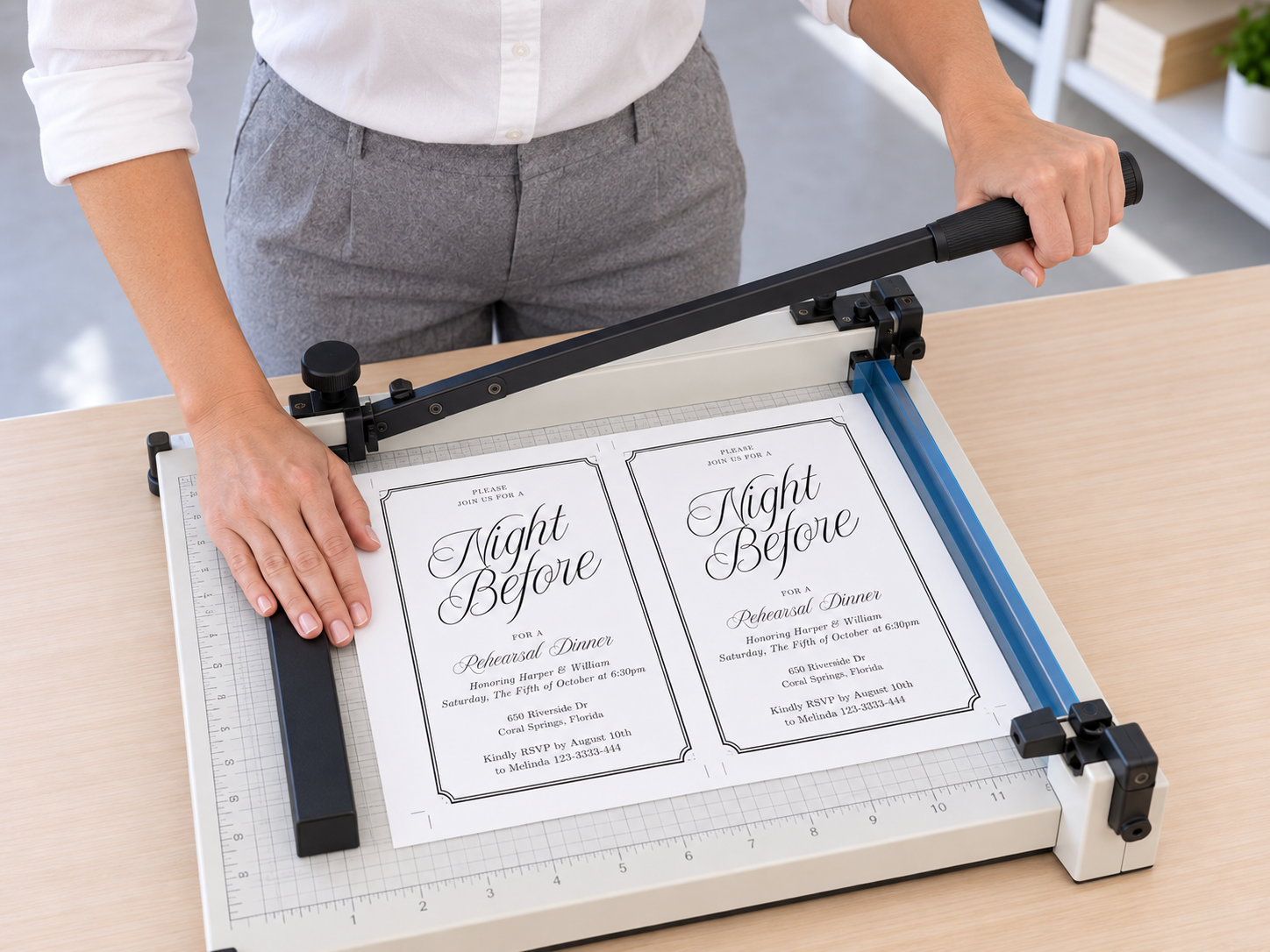
2. Trim at the marks. Align the intended cut with your cutter's guide. 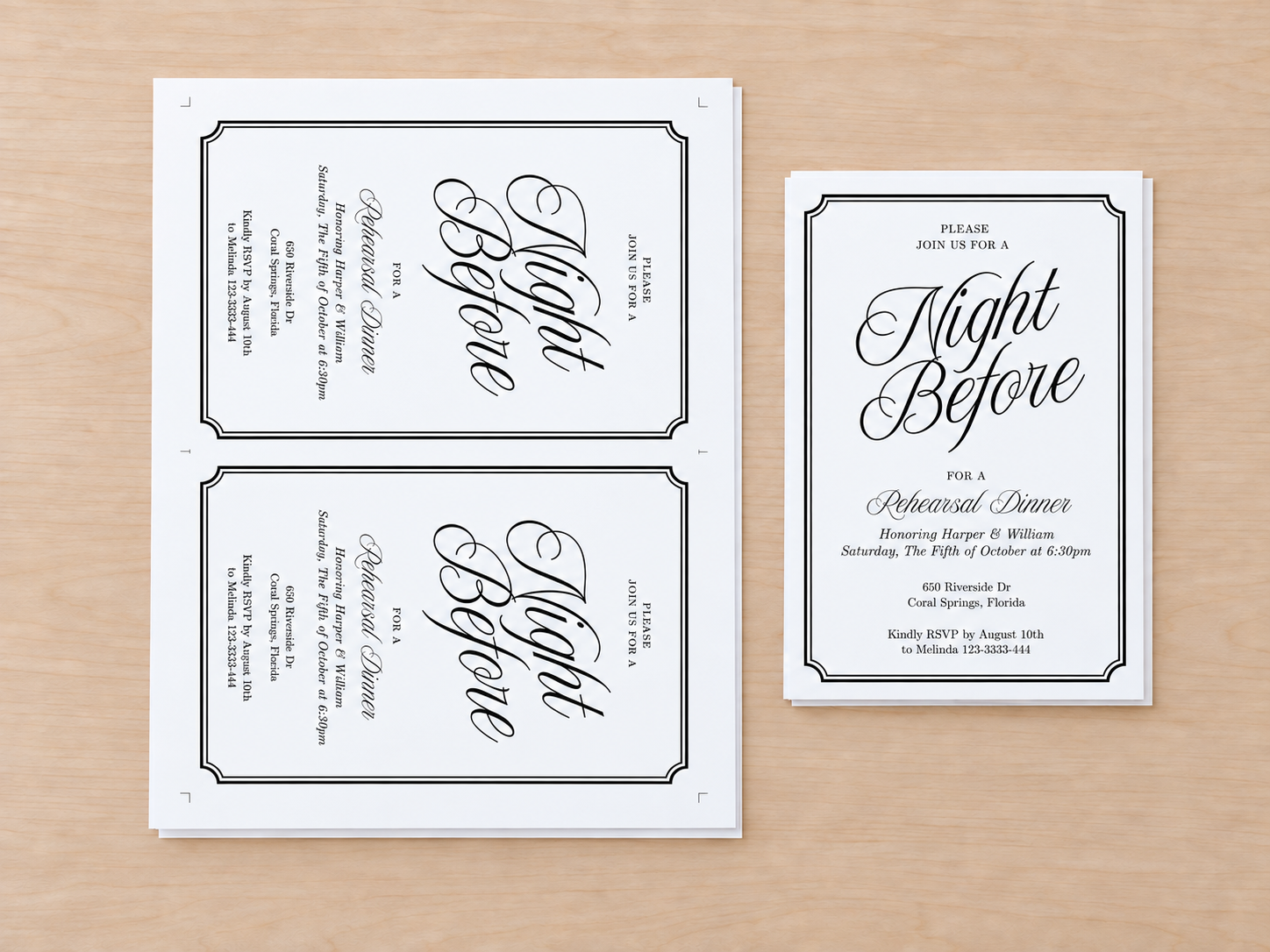
3. Check the finished card. Measure 5 x 7 inches and check the border.


These supplied process illustrations and mockups show the stages, not a measured print test. Once your own sample passes, print and trim the remaining sheets.
If the result is not right
The invitations print too small
Check for Fit, Shrink to fit, the wrong paper size, or a second multiple-pages-per-sheet setting. Return to Actual size / 100%, print one sheet, and measure again.
Only one invitation fits
Keep the card at 5 x 7 inches. Check Auto orientation, margins, gaps, bleed, and space for guides. Two upright cards need landscape Letter paper in this example.
An edge or trim mark is missing
Check the printer's printable area against the layout. Move the marks within that area or use a suitable printer. Do not assume your printer supports borderless printing.
Your next step
Arrange your invitation sheet in Web, or get Desktop for free original-PDF printing on Windows. Explore Desktop Pro only if you want to create the layout there.