Bleed and Trim: What They Mean and How to Check Them
See where bleed, the trim line, and the safe area sit, when edge-to-edge artwork needs bleed, and how to check the file before cutting.
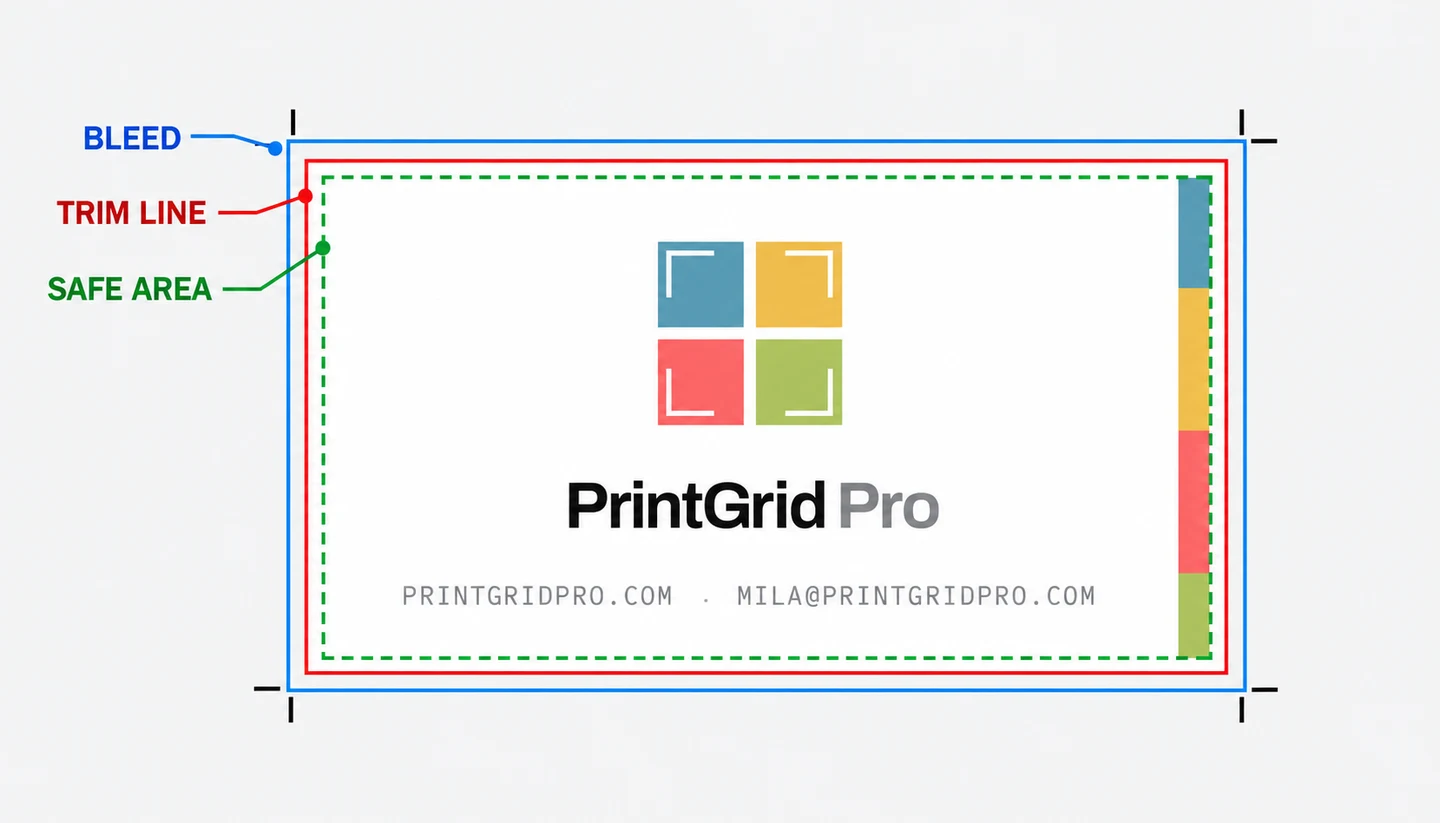
What are bleed and trim?
The trim line is the finished edge of the card after cutting. Bleed is extra background artwork outside that line. The safe area sits inside the trim line and keeps text and important details away from the cutter.
In these card examples, the safe-area guide is placed one matching interval inside the trim line, equal to the bleed interval outside it. This keeps the guide close to the finished edge while still showing where important content should stop.
Use trim marks or trim lines when you need cutting guides. For edge-to-edge artwork, prepare the background beyond the finished edge in your design file and check the bleed in the preview. A guide cannot create missing artwork.
How trim marks relate to the trim line
Trim marks are short corner guides outside the finished card. Each mark points toward the trim line without drawing across the artwork. The Back card below shows the trim marks aligned with the finished edge, while bleed remains outside and the safe area remains the same guide interval inside.
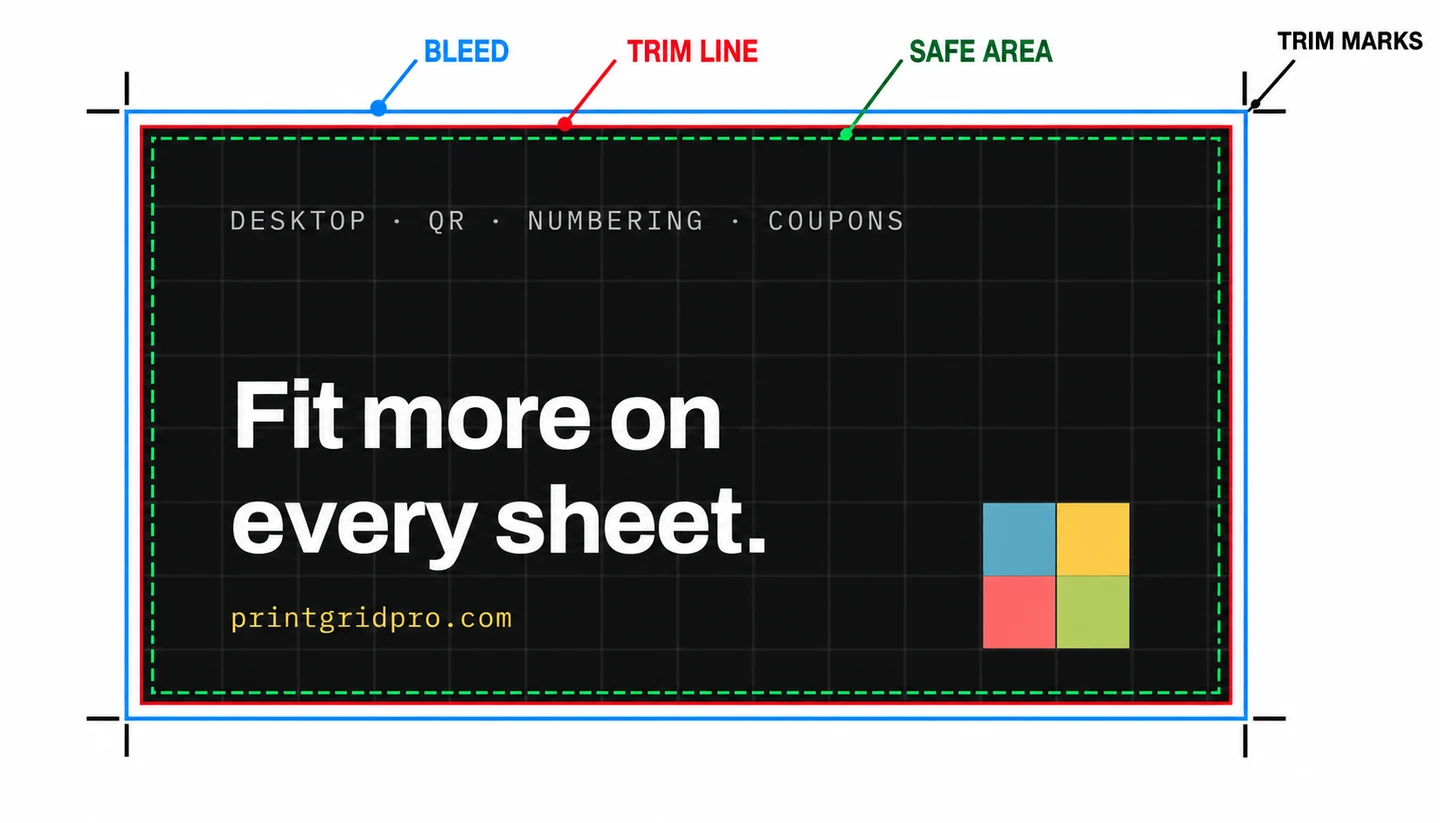
Why bleed prevents white edges
Paper and cutters can shift slightly. If the artwork stops exactly at the finished edge, even a small shift can reveal an unprinted strip. When the background continues through the bleed area, the cut can move a little and still leave color at the edge.
When do you need bleed?
Use bleed when a background color, photograph, pattern, or illustration should reach the finished edge. Invitations, business cards, gift tags, and photos often need it when the design has no white border.
You may not need bleed when the design intentionally has a white border and all artwork stays well inside the finished edge. The required amount can depend on the print shop or cutting method, so check their specification before preparing a paid print run.
Trim marks or trim lines?
Trim marks are short corner guides outside the finished piece. They leave most of the edge clear. Trim lines follow the full finished outline and can be easier to follow when cutting by hand.
Choose the guide that matches your cutting method. Guides show where to cut; they do not change the artwork or guarantee the accuracy of a physical cutter.
Check bleed in PrintGrid Pro
- Upload the finished PDF, PNG, or JPEG.
- Confirm the intended finished size.
- Set the bleed amount required by the file or print provider.
- Choose trim marks, trim lines, or both.
- Inspect every edge in the preview before creating the PDF.
If the uploaded design already includes bleed, the trim boundary sits inside that source area. Increasing bleed must not enlarge or stretch the artwork. If the source has no artwork beyond the finished edge, PrintGrid Pro cannot invent it; return to the design file and extend the background first.
Common mistakes to avoid
- Adding a guide to missing artwork: a bleed line cannot fill an empty edge.
- Putting text near the cut: keep names, dates, and logos inside the safe area.
- Printing with Fit selected: printer scaling changes the physical dimensions and guide positions.
- Skipping the test sheet: screen geometry cannot confirm a printer's feed or a cutter's physical accuracy.
Prepare the sheet
When the artwork and finished size are ready, open PrintGrid Pro, arrange the copies, and check the guides before creating the PDF.