Best Online Tools to Arrange Cards on One Sheet
Compare PrintGrid Pro, PDF Snake, Sejda and PDF24 for card sheets, Canva import, PDF n-up, finished sizes and printing place cards.
The best online tool depends on what you are starting with. For a finished card design that needs copies at a chosen physical size, PrintGrid Pro offers a focused sheet-layout workflow. PDF Snake is another capable option for artwork and imposition. Sejda and PDF24 are useful choices when the job starts with PDF pages that need a different page arrangement.
The difference matters. A card is an item with a finished width and height. A PDF page can be a single card, a whole sheet, or a document page. Putting more pages on a sheet does not automatically produce the card size you intended.
Key Takeaways
- Choose the tool around your starting file and intended finished size.
- PrintGrid Pro Web supports direct Canva import as well as finished-file uploads.
- PDF Snake also documents artwork resizing and repeated card layouts. Sejda offers a preserve-original-page-size option.
- Once a PDF contains the completed sheet, print that page once at its intended scale.
Published by the PrintGrid Pro Team. This comparison uses documented workflows checked on October 20, 2026. It is not a hands-on speed or print-quality benchmark.
Compare the job each service is built to handle
Start with the output you need, then compare the controls. An invitation sheet, a handout and a folded booklet can all contain several items, but they do not need the same arrangement.
| Online service | Documented workflow | A useful reason to choose it |
|---|---|---|
| PrintGrid Pro Web | Finished artwork, physical item size, copies and sheet preview | You want to arrange cards or stationery, including artwork from a connected Canva account |
| PDF Snake Web | Artwork resizing and card imposition, plus broader PDF imposition tools | You want a configurable sequence of PDF and artwork operations |
| Sejda N-up | PDF page arrangement with layout, order and original-size options | You have a PDF whose pages need a new arrangement |
| PDF24 Pages per sheet | PDF pages combined onto a selected paper size | You want an occasional browser utility for PDF page composition |
These are task descriptions, not performance rankings. In particular, PDF Snake's business-card tutorial shows a JPG resized to physical dimensions, arranged with its Cards tool and given crop marks. It also documents recording a sequence of steps. It is a real alternative for repeated artwork, not merely a document-reading utility.
Sejda N-up includes a control to preserve original page size. PDF24 Pages per sheet documents paper-size, margin and page-order settings. Check the current service limits before uploading a large job, rather than assuming every online utility has unlimited use.
Where PrintGrid Pro keeps the workflow simple
Its useful starting point is the finished item: choose its dimensions and the paper, then inspect the calculated arrangement. You do not have to place each identical copy by hand. The preview remains something to check, particularly when printer margins, bleed or cutting guides reduce the available space.
The current Canva workflow also removes a file-handling step. With the appropriate Canva account connected, you can choose a design and import its printable artwork into the Web editor instead of manually downloading and uploading it between the two services.
That is the practical speed benefit: fewer handoff actions and no repeated manual placement for this task. It is not evidence that every file processes faster than it would in another service. File complexity, account access and the layout still matter.
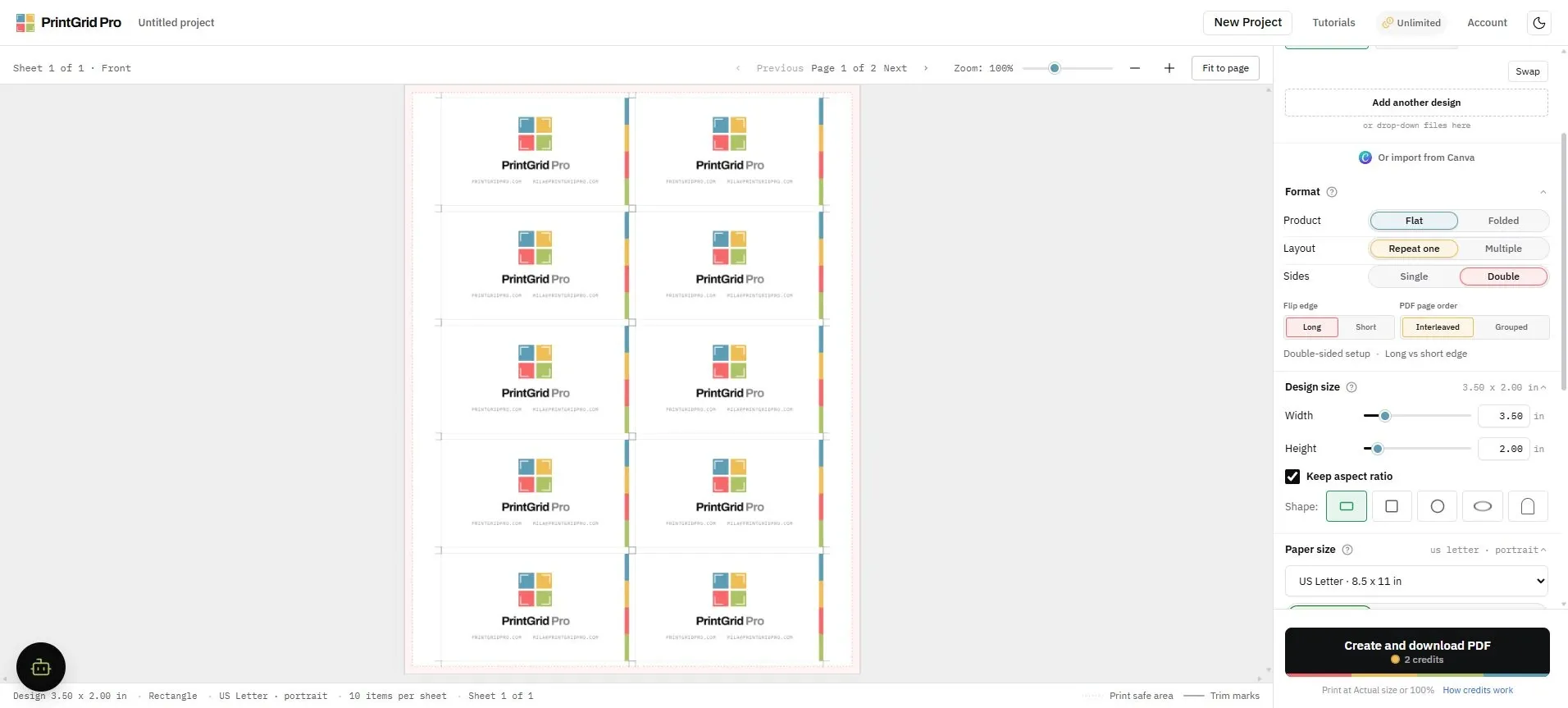
Match the service to your starting file
An already arranged PDF usually needs printing, not another arrangement. By contrast, a small single-card file needs a sheet layout before it is ready for a batch.
| What you already have | What to do next | What to check |
|---|---|---|
| One finished invitation or tag | Use an artwork-repeat layout | Finished dimensions, margins, copy count and guides |
| Different guest cards at one shared size | Use a multiple-design workflow | Every guest, copy counts and the final sheet |
| A multipage PDF for a compact handout | Consider a PDF n-up utility | Page order, readability and any scaling |
| A complete sheet PDF containing several cards | Print the existing page | Matching paper and Actual size or 100% |
| A multipage document intended for folding and binding | Choose a suitable booklet-imposition workflow | Pagination, binding and duplex instructions |
For several different designs, the same-size multiple-design guide explains the relevant PrintGrid Pro route. Repeating one design is appropriate for identical tags. It does not create a guest list or change names for you.
A Canva place-card example
how to print place cards from canva?
PrintGrid Pro does the arranging part.
You give it the design and the finished size, it works out how many fit and lays them out evenly, and the PDF is built at the size you asked for.
Steps
- Bring a finished PDF, PNG or JPEG from Canva, Illustrator, Photoshop or your phone. PrintGrid Pro arranges it; it does not redesign it.
- PrintGrid Pro builds the PDF at true physical dimensions in millimetres or inches. Choose Actual size or 100% when you print, and select the same paper size as the PDF. Check one printed copy before running the full batch.
- Use trim marks or trim lines when you need cutting guides. For edge-to-edge artwork, prepare the background beyond the finished edge in your design file and check the bleed in the preview. A guide cannot create missing artwork.
Those steps describe the finished-file route. Direct Canva import is the alternative handoff when the design is accessible through your connected account. In either case, finish the names and artwork in Canva before arranging the sheet.
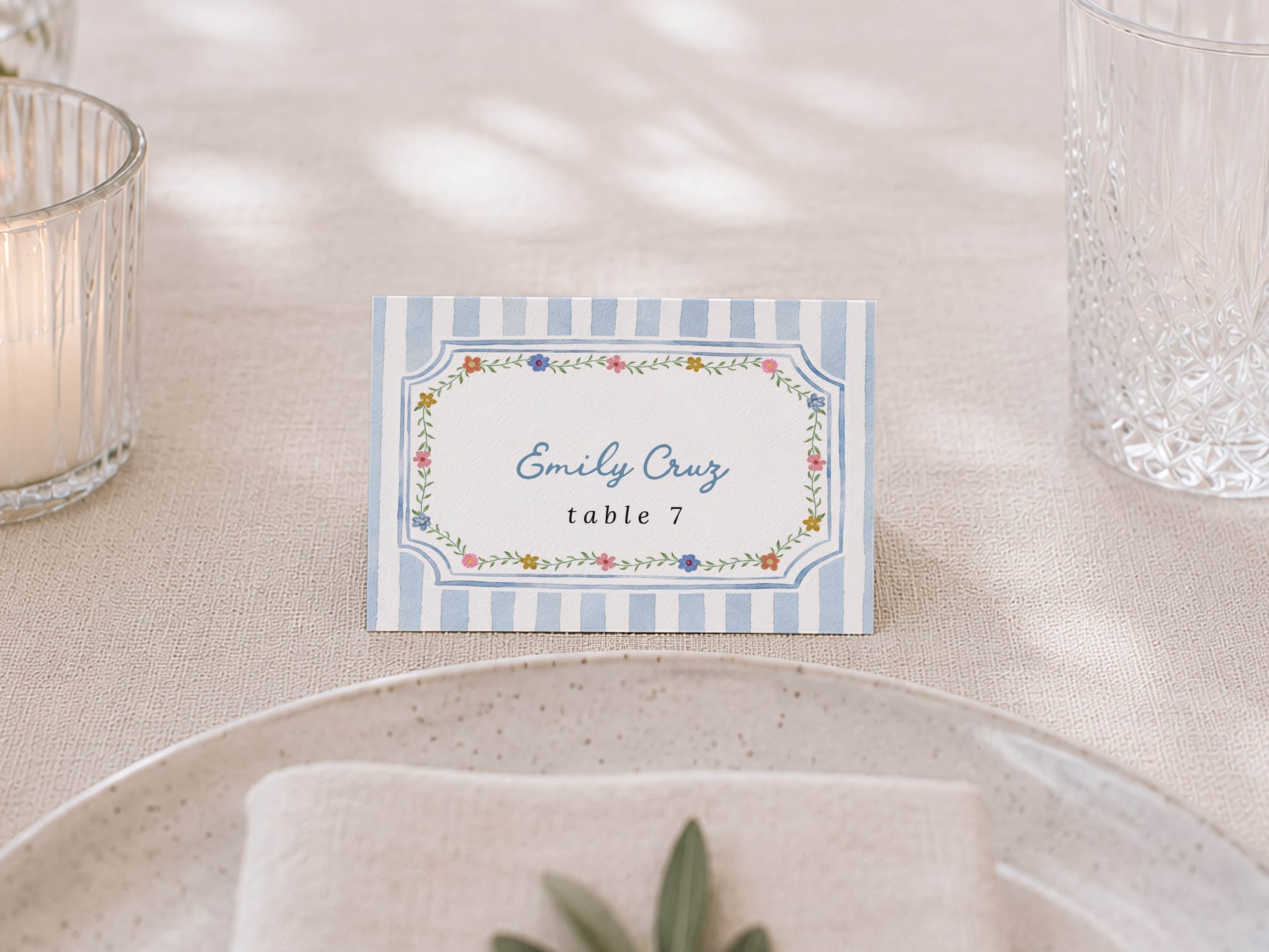
For a guest set, check that each intended name appears the right number of times. For a folded card, identify whether the file contains one panel or the whole open card. A finished panel size and an unfolded size are different measurements. Do not shrink the whole open card to one panel's dimensions.
The existing flat-or-folded place-card tutorial covers those file structures, including separate fronts and a shared back. Use it for the detailed setup instead of treating one generic preset as suitable for every Canva template.
Keep editing and print preparation separate
Canva remains useful when the wording, artwork or typography needs work. Its place-card design page describes customizing the design and preparing printable output. PrintGrid Pro works with the finished artwork; importing it does not make its text layers editable inside the sheet editor.
If you use a downloaded file, Canva's download-file guidance distinguishes image formats from PDF Print. Choose the file and export settings that suit the artwork and your print provider. Do not add a second set of crop marks or extra bleed without checking what the source already contains.
The final PDF should represent the sheet you intend to print. When it already contains several cards, keep one PDF page per physical sheet. Applying another n-up setting can reduce the whole prepared layout.
Check cost and file handling before choosing
Compare the access model with the job you actually need. PrintGrid Pro Web exports use trial credits or paid access; check the current plans. A trial allowance is different from permanent unlimited use.
PDF24 describes its online tool as free and ad-supported, with conversion performed on its servers. Sejda displays task-specific free limits. These are vendor descriptions, not a privacy audit. Read the current terms and processing notices for whichever service you select, especially when guest lists or customer artwork are involved.
Questions before your first batch
Can I arrange cards without leaving Canva?
You can build a sheet manually in a design document or use a suitable template. This comparison is about avoiding that repeated placement work when the individual designs are already finished. Canva also offers its own print-order routes for supported products.
Will 100% printing guarantee the result?
It preserves the intended scale setting, but it does not remove printer margins or prevent paper-feed and cutting variation. Print one sheet, trim one item and measure it. Follow the printer's supported paper and media instructions.
Is Desktop required after using an online service?
No. A suitable PDF application can print the downloaded sheet. PrintGrid Pro Desktop Free is one Windows option for original-PDF printing; creating a new Pro layout inside Desktop is a different task. The Web versus Desktop guide explains that boundary.
Choose the next step around the file
Choose PrintGrid Pro Web when you want a direct route from finished card artwork to a size-controlled sheet, particularly when the artwork is in Canva. Consider PDF Snake for its configurable imposition operations, or Sejda and PDF24 when the main job is PDF page composition. Then check the actual arrangement and print one sheet before committing the batch.
To prepare your own layout, open the PrintGrid Pro sheet editor.
Compare individual tools
For current prices, strengths and limitations, read our focused comparisons: