How to Print Multiple Designs on One Sheet
Put different same-size cards, tags, or photos on one sheet, choose a count for each design, and check every page before printing.
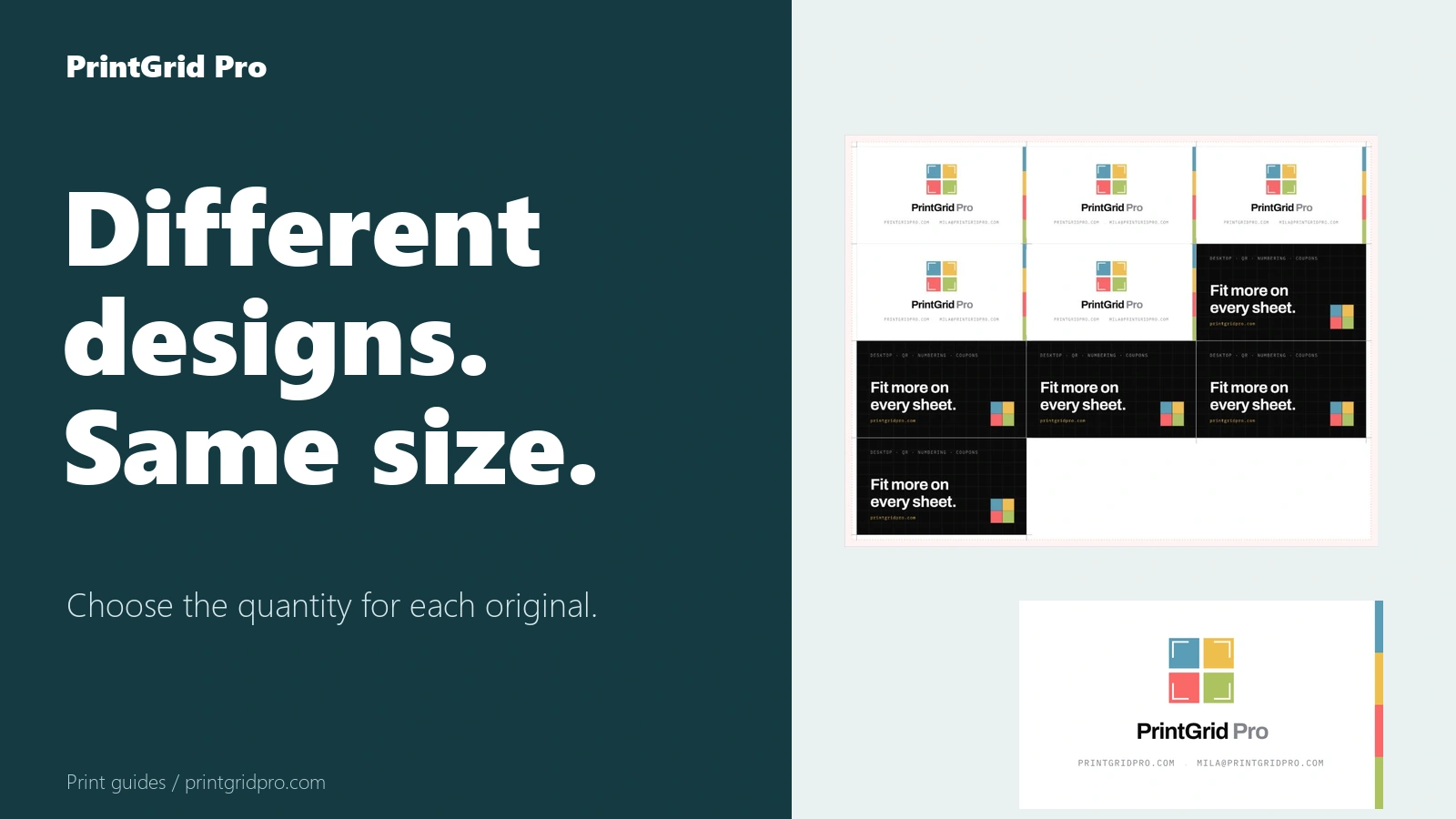
Start with designs that use the same finished size
You can place different cards, tags, or photos on the same sheet when they all need the same finished width, height, and shape. A 3.5 × 2 in card and a 4 × 6 in photo need separate layouts.
Choose Flat and Multiple, then set the finished size and the paper that is actually in your printer.
Add each design and choose how many you need
Add each PDF, PNG, or JPEG, then enter its copy count. Drag the designs into the order you want them to fill the sheet. The preview and the PDF use that same order.
Check every page when the total quantity needs more than one sheet. A full first page does not show what will appear on the next one.
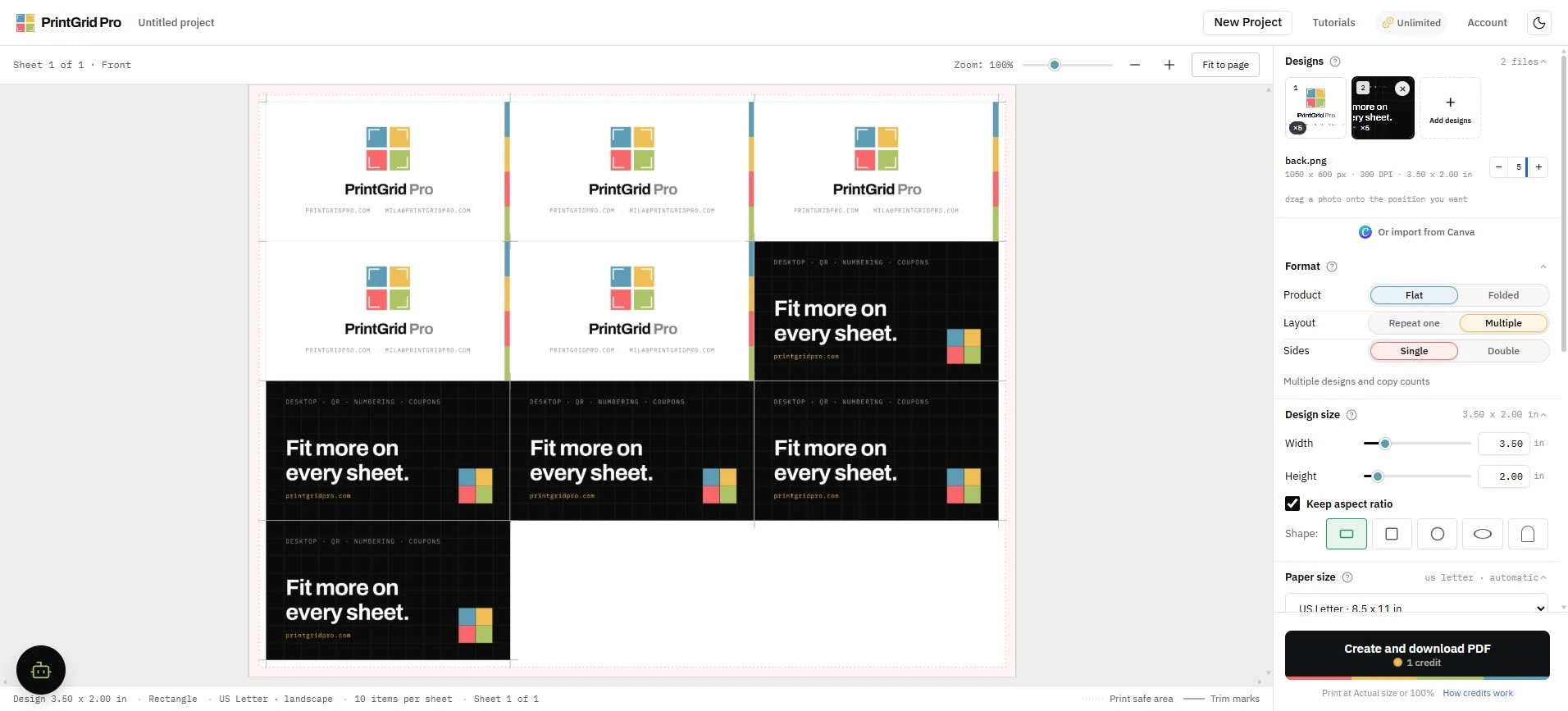
Choose Fit or Fill and Crop
Fit keeps the whole design visible and may leave empty space when its proportions do not match the finished size. Fill and Crop covers the finished area and can trim part of the image around the edges.
PrintGrid Pro does not stretch a design to force it into a different shape. Read any proportion warning and check the preview before continuing.
Check the sheet before creating the PDF
Review the paper size, margins, gaps, guides, copy counts, physical sheets, and PDF pages. Adding space or cutting guides can reduce how many pieces fit on one sheet.
Only the designs in this layout are included when you create the PDF. Your other local files are not added.
Print one test sheet
Open the PDF with the same paper size selected and print at Actual size or 100%. Do not choose Fit to page, because that can change every finished size.
Measure one piece and check the crop and cutting guides before printing the full batch.