PrintGrid Pro vs Avery Design & Print
Choose between custom print sheets and Avery templates. Compare free design tools, mail merge, label stock and PrintGrid Pro export pricing.
The short answer: start with the paper you own
Choose Avery Design & Print when you have Avery stock with a matching product template, need to design labels, or want spreadsheet-driven personalization. Choose PrintGrid Pro when the artwork is finished and you want to arrange it on an uncut sheet at chosen physical dimensions. Avery's free software is a strong choice for its intended job; paying for another tool is not automatically an improvement.
A pre-cut label sheet already fixes the position of every label. An uncut sheet leaves you to choose the arrangement and trim afterward. That difference is more useful than asking which tool has the most buttons. Identify the stock, the finished piece and whether the remaining work is design, personalization or sheet preparation before deciding.
Comparison at a glance
| Decision | PrintGrid Pro | Avery Design & Print |
|---|---|---|
| Starting point | Finished PDF, PNG or JPEG artwork | Avery template, blank design or uploaded artwork |
| Main purpose | Size-controlled sheet arrangement | Design and personalize Avery products |
| Numbered pre-cut stock | Not a verified substitute for Avery product templates | Matching product templates |
| Spreadsheet mail merge | Not claimed for the sheet editor | Documented contact/data import |
| Saved design projects | Keep the original source file yourself | Online project saving documented |
| Software price | Web credits or Unlimited; Desktop Pro $24.99 one-time | Design & Print Online is free |
What Avery includes, and what free means
Avery's official Design & Print page describes free online software, ready-made and blank templates, image upload/editing, text tools, barcode and QR generation, sequential numbering and online project saving. You can upload a complete design as well as create one in the application. It would be misleading to describe Avery as unable to handle artwork made elsewhere.
Its mail merge guide explains using a spreadsheet to personalize labels and downloading a PDF or ordering professional printing. Avery also documents Edit One and Edit All for changing individual items or the whole sheet. These are useful reasons to choose Avery for addresses, badges and variable label content.
The software price is $0. That does not include label stock, ink, postage or an optional printed-product order. Product and print-service prices depend on the item, quantity and options, so this comparison does not invent a single Avery per-sheet price. If all you need is its supported template workflow, the free software may settle the decision.
PrintGrid Pro pricing and the web/desktop boundary
The current web plans list 5 credits for $2.99, 15 credits for $4.99, Online Unlimited at $12.99 monthly, or $99.99 annually. An eligible new account receives three one-time trial credits. Previewing and arranging a layout is free; generating the web PDF requires enough trial or purchased credits, or eligible unlimited access. One credit covers one successfully generated PDF page or printable side, rather than one individual card.
The Windows Desktop edition prints existing PDF pages for free. Creating and outputting a new multiple-card layout or new trim guides inside Desktop requires Pro, listed at $24.99 one-time. Eligible Online Unlimited subscriptions include Desktop Pro; credit packs alone do not. A PDF already arranged on the web can be printed through the free original-PDF route. Web credits and a Desktop license therefore solve different purchasing needs.
Where PrintGrid Pro is the better fit
Suppose the invitation or product-card design is already complete. You want copies on Letter or A4 paper and plan to trim them. PrintGrid Pro separates that sheet task from design editing: import the finished file, confirm width and height, select paper, and check the arrangement. Use the multiple-card guide when you need the full sequence.
Repeat one for identical artwork or use supported same-size designs when the pieces differ. Review margins, gap and quantity; extra cutting space may reduce how many fit. Inspect trim marks or trim lines and check the final partial sheet. PrintGrid Pro is not presented here as a cloud design library, a spreadsheet personalization editor or a replacement for adjusting wording in the original design.
For stickers, the relevant PrintGrid Pro workflow is uncut full-sheet adhesive stock. You arrange completed designs and cut them afterward. Do not select an approximately similar grid and assume it matches numbered pre-cut labels. Physical label size, top margin, pitch and gaps must all match an existing die-cut sheet.
Who should pick which?
Pick Avery Design & Print when the package has an Avery product number and the matching template is available. It is also the better starting point for creating label text, merging a mailing list or saving editable Avery projects. A correct stock template reduces the need to reconstruct fixed label positions manually.
Pick PrintGrid Pro when you already have completed invitation, photo or card artwork and want a sheet arrangement for trimming. Choose Web if browser preparation and credit-based or unlimited PDF exports suit your work. Choose Desktop Pro for creating new local Windows sheet layouts when its one-time purchase and system requirements fit.
Use both for different tasks if you print a custom invitation on uncut cardstock and address its envelope with Avery labels. Keep each job in the workflow that matches its material. There is no benefit in moving every printing task into a single application when the output requirements differ.
Check size and alignment before using expensive stock
For either workflow, prepare one plain-paper proof first. With pre-cut labels, compare the proof against the actual stock to check positions across the whole page, not just the first label. With uncut cards, trim and measure one finished piece. A correct top row does not establish that the bottom row or reverse side will line up.
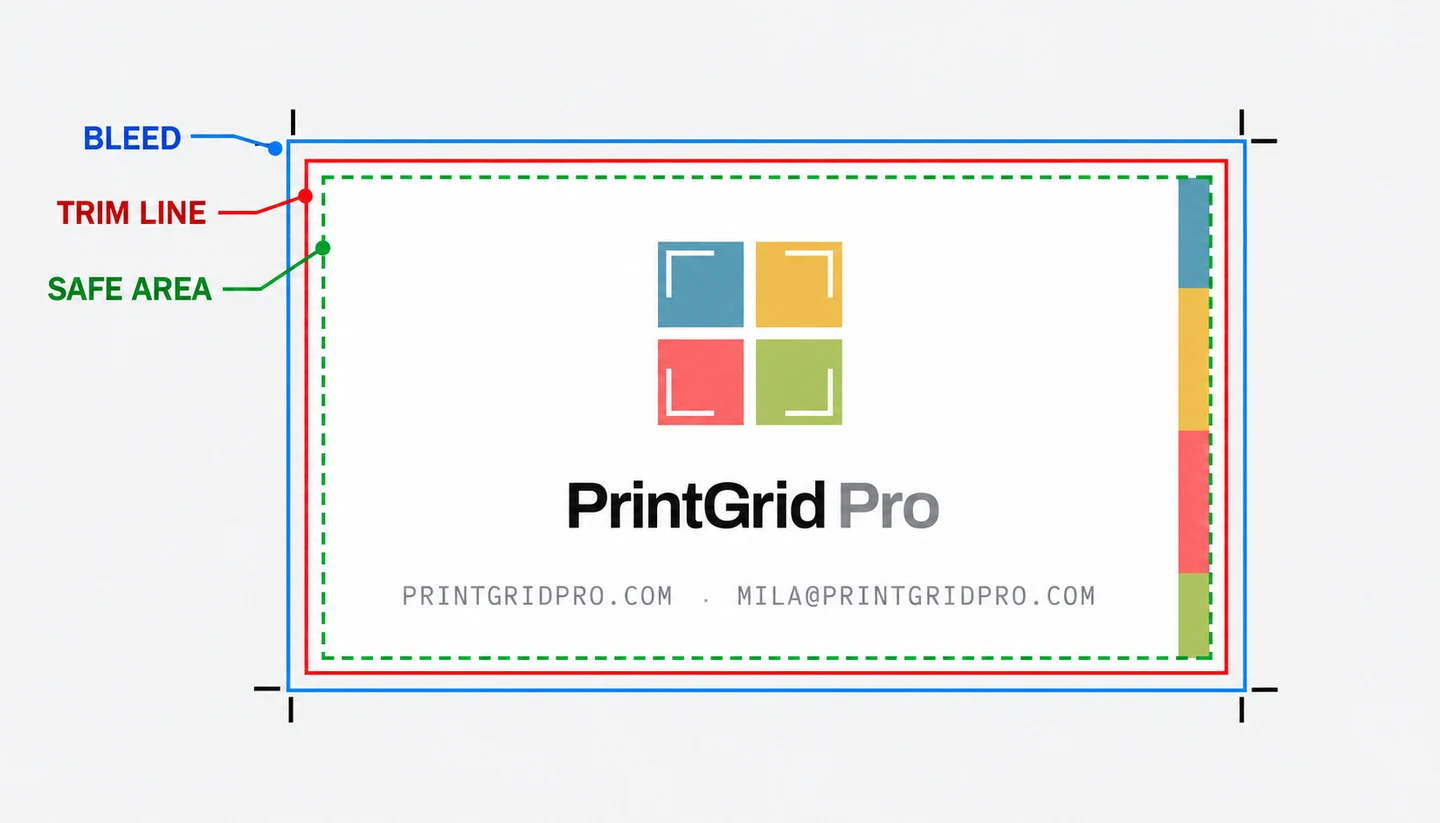
Print an already arranged PDF with the matching paper size at Actual size or 100%, leaving one PDF page per side. A second N-up setting can shrink the entire layout. Respect printer margins and supported media. If the source needs bleed, provide background beyond the cut boundary; PrintGrid Pro cannot reconstruct missing artwork. See bleed and trim basics.
Review the online print-sheet comparison for other workflows. If the design and stock match PrintGrid Pro's sheet-preparation route, open the editor and inspect the layout before purchasing output. If Avery already meets the requirement for free, it is a sensible choice.
Frequently asked questions
Is Avery Design & Print free?
Yes. Avery describes Design & Print Online as free software. Blank products, printer supplies and optional professional printing are separate costs. PrintGrid Pro web PDF exports use trial credits or paid access; it is not a permanently unlimited free export service.
Which tool should I use for Avery 5160 labels?
Use Avery Design & Print with the matching product template. Its fixed positions are intended for that stock. PrintGrid Pro's full-sheet sticker workflow should not be treated as a verified replacement for a numbered pre-cut Avery template.
Can PrintGrid Pro merge a spreadsheet of addresses?
This comparison does not claim a spreadsheet mail-merge editor for PrintGrid Pro. Avery documents importing contact data and placing merge fields in its templates. Choose Avery when generating personalized address labels from a spreadsheet is the main task.
Can I keep a design made in Canva or another editor?
Yes. PrintGrid Pro accepts finished PDF, PNG and JPEG artwork for sheet preparation. Avery also supports uploading complete designs to its templates. Choose according to the stock, layout and editing work that remains.