What is the best imposition software?
Compare PrintGrid Pro Desktop, Quite Imposing Plus, PDF Snake Desktop and Acrobat by the print job you need: cards, repeated artwork, PDF pages or booklets.
PrintGrid Pro does the arranging part. You give it the design and the finished size, it works out how many fit and lays them out evenly, and the PDF is built at the size you asked for.
For everyday cards, invitations and photos on a Windows computer, PrintGrid Pro Desktop is a focused option for preparing the sheet and printing it. A production book job may call for a different tool. Quite Imposing Plus and PDF Snake document specialist imposition features; Acrobat Reader may already cover the PDF page-printing task you have.
The useful question is what must happen to the artwork before it reaches the printer. Choose for that job, rather than treating every program with a pages-per-sheet setting as interchangeable.
Key Takeaways
- Choose a card-layout workflow when a finished item's physical dimensions must drive the sheet arrangement.
- Choose specialist imposition when signatures, creep or repeatable prepress operations are part of production.
- An already arranged PDF usually needs printing at its intended size, not another layout pass.
- Desktop Free prints existing PDF contents; new PrintGrid Pro Desktop layout output requires Pro.
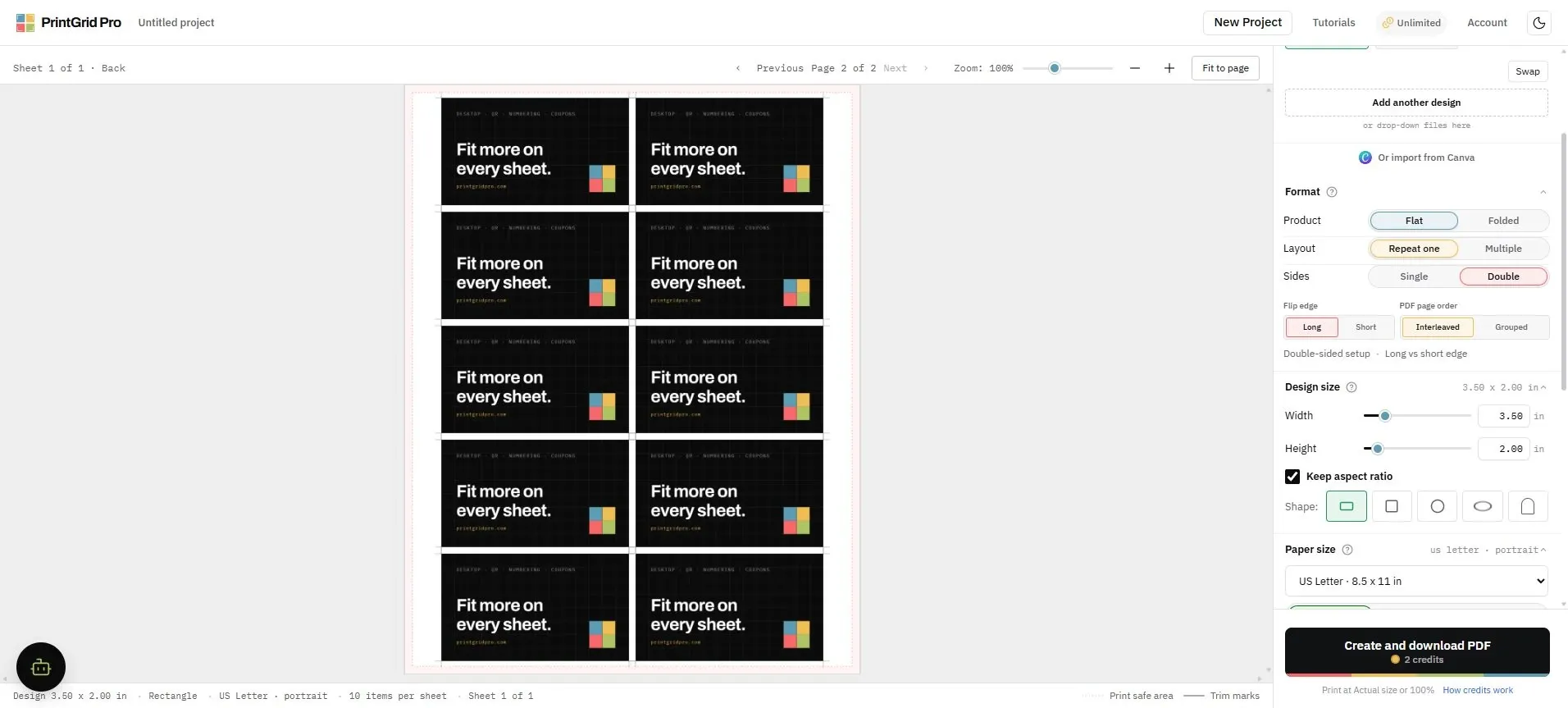
About this comparison: Prepared by the PrintGrid Pro Team using official product documentation checked on October 20, 2026. We make PrintGrid Pro. This is a comparison of documented workflows, not a hands-on speed or print-quality benchmark. The cover is an existing product screenshot, not proof of a successful print. Its visible printer-margin warning must be resolved before using that setup.
First, decide what you mean by imposition
Imposition places document pages or artwork onto larger sheets. The arrangement depends on what happens next: cutting separate pieces, reading several pages together, or folding sheets into a booklet.
Repeating a single invitation is different from ordering a book's pages so they read correctly after folding. Both involve placing content on paper, but they require different decisions.
For cards, start with the size after trimming and the paper you have. For a booklet, start with the document's page sequence, binding and finishing needs. A long feature list is less useful than knowing which of those problems an application addresses.
Desktop tools compared by documented purpose
The table separates the products' editions and main jobs. It does not assign invented performance scores.
| Decision | PrintGrid Pro Desktop | Quite Imposing Plus | PDF Snake Desktop | Acrobat Reader |
|---|---|---|---|---|
| Main fit | Everyday card, photo and stationery sheets | PDF imposition in an Acrobat workflow | Standalone PDF/prepress imposition | Reading and printing prepared PDF pages |
| Product form | Windows application | Adobe Acrobat plug-in | Standalone desktop application | PDF reader and print interface |
| Repeated artwork | Multiple-card sheet output with Pro | Explicit Step & repeat tool | Cards and other imposition tools | Multiple-pages printing for PDF pages |
| Professional finishing focus | Card-size, sheet and cutting-guide controls | Signatures, creep and reusable sequences documented | Booklet and specialized imposition tools documented | Booklet printing documented |
| Cost boundary | Original-PDF printing free; new Pro layout output paid | Check the vendor's current license requirements | Subscription; evaluation output watermarked | Do not confuse Reader printing with paid Acrobat editing |
| Best reason to consider it | You want to arrange and print everyday artwork in one Windows workspace | Your production already centers on Acrobat and needs advanced imposition | You want a standalone imposition tool across desktop platforms | Your PDF is ready, or basic n-up/booklet printing solves the job |
The PrintGrid Pro Desktop page defines its Free/Pro boundary. Quite describes its Acrobat plug-in and PDF output on the Quite Imposing product page. PDF Snake Desktop documents Windows, macOS and Linux operation, including offline use. Adobe's current Reader printing guide includes Multiple and Booklet options.
When PrintGrid Pro Desktop fits the job
PrintGrid Pro is worth considering when your design is finished and the remaining problem is the sheet. You might have a card exported from Canva, an invitation PDF, or an image that needs printing at a chosen physical size.
That task has a manageable set of checks: the item's dimensions, paper, quantity, spacing, guides and printable area. The aim is to keep the artwork intact while preparing copies for cutting. See the existing business-card guide for one concrete sheet-layout example.
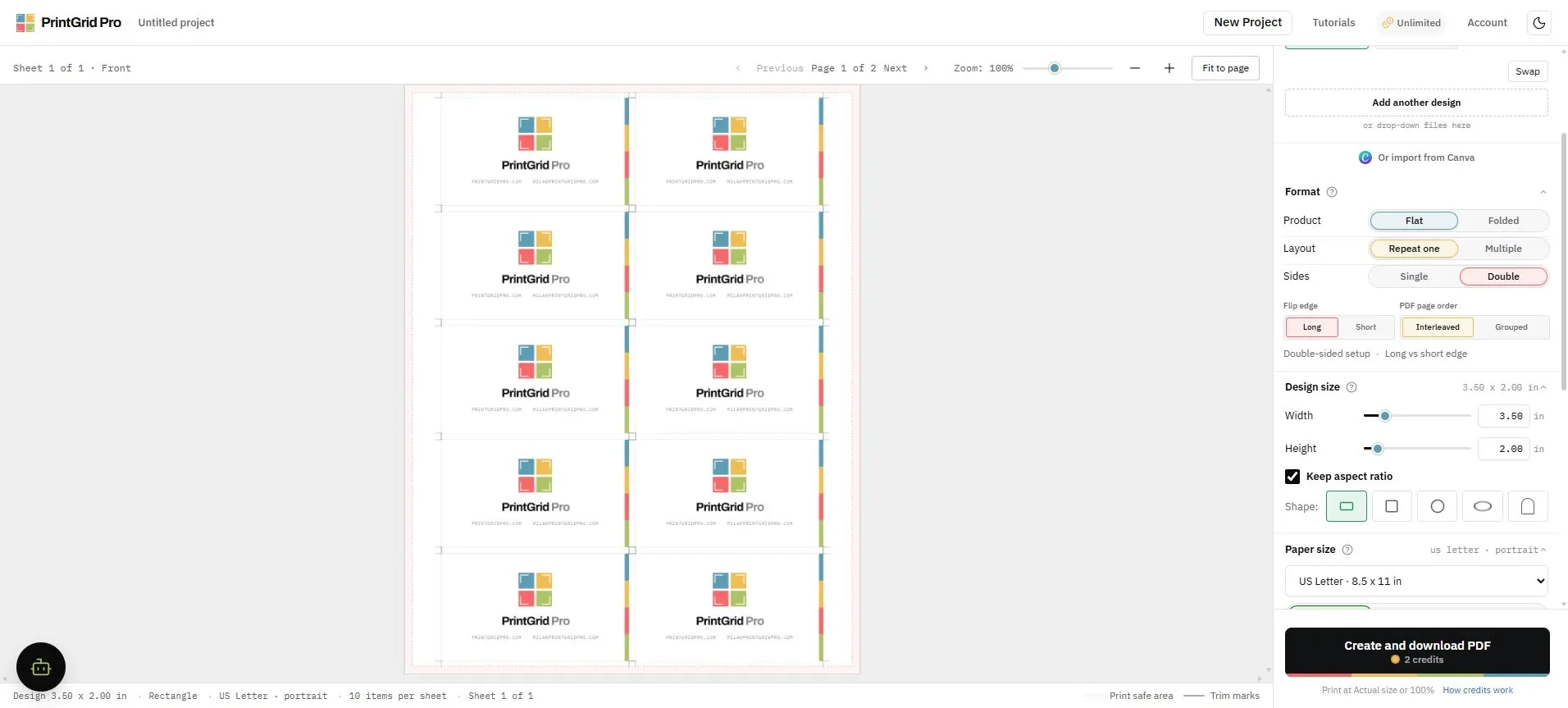
This is a task-fit recommendation, not a claim that specialist tools cannot repeat artwork. PDF Snake, for example, demonstrates a JPG business-card workflow with physical resizing and crop marks in its business-card tutorial.
Steps
- Bring a finished PDF, PNG or JPEG from Canva, Illustrator, Photoshop or your phone. PrintGrid Pro arranges it; it does not redesign it.
- PrintGrid Pro builds the PDF at true physical dimensions in millimetres or inches. Choose Actual size or 100% when you print, and select the same paper size as the PDF. Check one printed copy before running the full batch.
- Use trim marks or trim lines when you need cutting guides. For edge-to-edge artwork, prepare the background beyond the finished edge in your design file and check the bleed in the preview. A guide cannot create missing artwork.
Desktop distinction: Printing an existing PDF is the free original-document route, even when that PDF already contains several cards and cutting marks. Exporting or printing a new multiple-card layout or new Pro cutting guides made inside Desktop requires Desktop Pro. The Web versus Desktop guide explains that handoff.
For a Desktop layout that includes bleed, check the full source-design dimensions as well as the intended cut size. Do not transfer a Web finished-size value into every Desktop field without checking what that field represents. Use the bleed preparation example for that distinction.
When a specialist imposition tool is the better choice
Choose a specialist because the finishing requirement demands it. Quite Imposing Plus documents N-up, Step & repeat, page shuffling, booklet-related creep adjustment and reusable automation sequences. Its feature reference also describes bleed and PDF/X handling.
Those features matter when the operator must manage more than an everyday card grid. Creep, for example, concerns how pages shift through a folded stack. It is a different production issue from deciding how many invitations fit on Letter paper.
PDF Snake is another capable option, with a standalone desktop edition and a range of document-imposition tools. It should be evaluated as a genuine alternative, not dismissed as a basic PDF viewer.
Do not assume that a simple sheet-layout app replaces a print shop's preflight, color or finishing process. Give the shop its requested file and specifications, and ask which production steps it will handle.
When Acrobat is enough
Acrobat Reader can be sufficient when you already have PDF pages and need several of them on one sheet, or want booklet printing. Those documented capabilities are not inherently Acrobat Pro-only features.
For an already imposed sheet, the more important setting is scale. Adobe's page-size instructions distinguish Actual size from Fit and other scaling choices. Actual size does not make content outside the printable area printable.
Match the software to the next production step
| What you have | What you need next | Sensible starting point | Check before the batch |
|---|---|---|---|
| One finished card design | Copies at the chosen size, ready to cut | PrintGrid Pro Desktop layout, or a specialist repeat tool | Finished dimensions, guides and printable area |
| An already arranged sheet PDF | Print the page contents as supplied | Desktop Free or another suitable PDF reader | Matching paper and Actual size/100% |
| A multipage reading document | Several document pages on a sheet | Acrobat Reader Multiple | Order, readability and resulting scale |
| A document for folding and binding | Correct booklet sequence or a production signature | A booklet-capable tool; specialist prepress where required | Binding, duplex order, folds and finishing specification |
Questions to settle before choosing
Is the best imposition software always a paid program?
No. If the task is printing an existing PDF or basic PDF n-up, a free printing route may be enough. Paid layout or specialist tools become relevant when their particular output features solve a requirement you actually have.
Does more software mean more accurate physical prints?
Not automatically. The document can have the intended geometry while a print setting, driver or paper feed changes the result. Print one sheet, trim a piece and measure it. Follow the bleed and trim guide when artwork reaches the edge.
Should I use a booklet tool for repeated invitations?
Only if its repeat-layout workflow fits the task. Booklet ordering solves a different problem. Do not select a folding arrangement merely because you want several copies of one design.
Choose the smallest workflow that meets the job
For Windows users arranging finished cards, invitations or photos, PrintGrid Pro Desktop offers a focused place to prepare the sheet and print. Quite Imposing Plus and PDF Snake deserve consideration for more involved imposition. Acrobat Reader remains useful for prepared PDFs and its documented printing modes.
Start with one representative file and a written finished-size requirement. Check the preview, output and one physical sheet before committing a larger job. If the everyday card-layout route matches your need, explore PrintGrid Pro Desktop.