How to print multiple tags on one sheet?
Arrange a finished tag design at its intended size, download the PDF sheet, and print at 100%. Check paper size, cutting guides, and one test tag.
PrintGrid Pro does the arranging part. You give it the design and the finished size, it works out how many fit and lays them out evenly, and the PDF is built at the size you asked for.
Steps
- Bring a finished PDF, PNG or JPEG from Canva, Illustrator, Photoshop or your phone. PrintGrid Pro arranges it; it does not redesign it.
- PrintGrid Pro builds the PDF at true physical dimensions in millimetres or inches. Choose Actual size or 100% when you print, and select the same paper size as the PDF. Check one printed copy before running the full batch.
- Use trim marks or trim lines when you need cutting guides. For edge-to-edge artwork, prepare the background beyond the finished edge in your design file and check the bleed in the preview. A guide cannot create missing artwork.
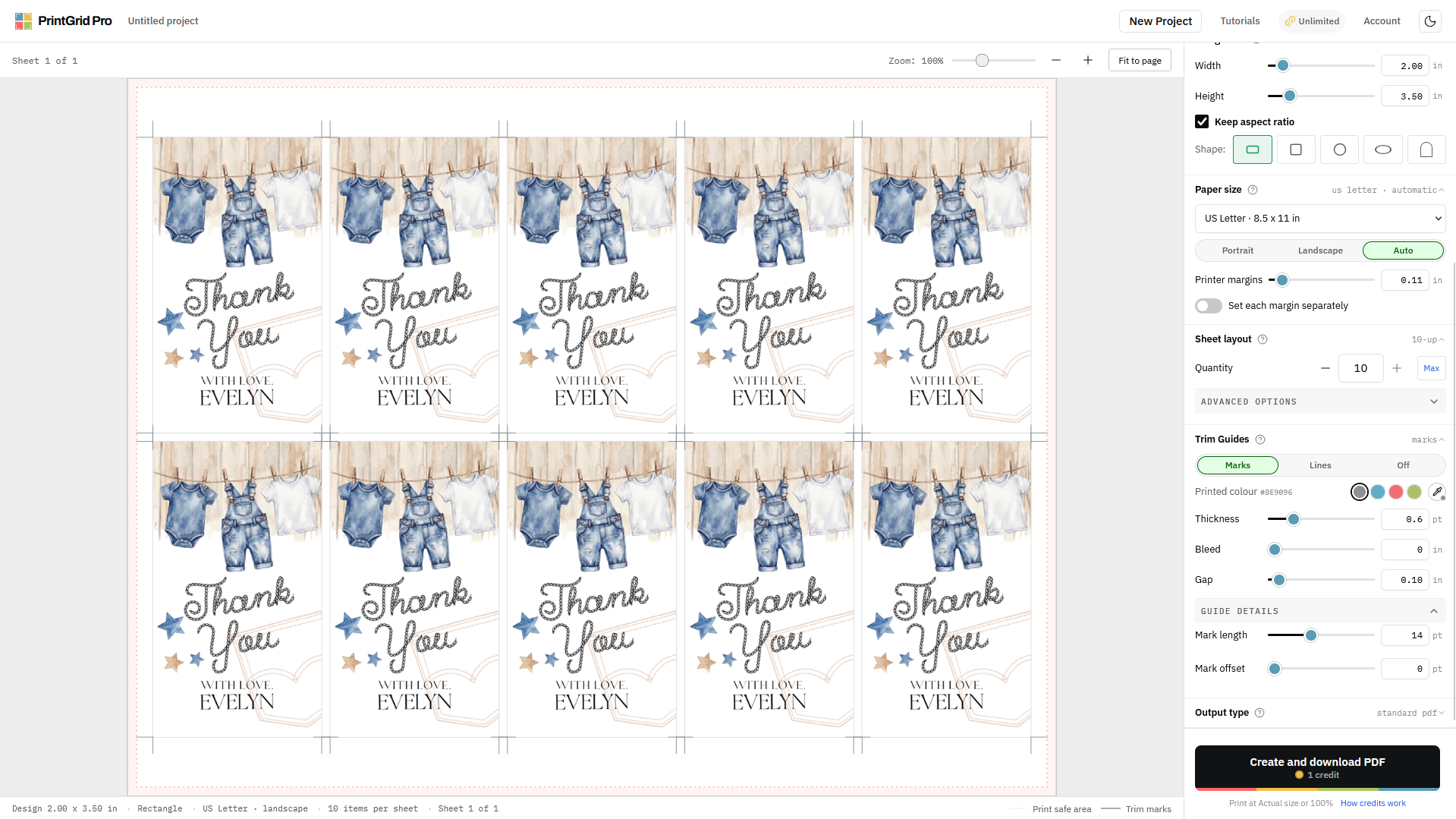
Make the sheet before you print
Open PrintGrid Pro Web, add the finished design, set the finished tag dimensions, and choose your paper size. Check the preview, then create and download the PDF sheet. After printing one test sheet, trim and measure one tag before printing the rest.
For a worked example with settings and screenshots, follow the ten-tag US Letter guide. This page gives the general answer; that guide demonstrates one specific size and layout.
FAQ
How many tags fit on one sheet?
The count depends on the finished tag size, paper size, margins, gaps, bleed, and space for cutting guides. Check the calculated preview instead of assuming a fixed number fits every sheet.
Should I select multiple pages per sheet when printing the PDF?
If the downloaded PDF already contains the arranged tags, print one PDF page per sheet at Actual size or 100%. Applying another multiple-pages layout can change their size. Adobe explains multiple-pages-per-sheet printing as a separate layout operation.
Can each tag have different artwork?
Yes, the multiple-design workflow arranges different designs at one shared finished size. It is separate from repeating one tag design across the sheet.
Do cutting guides create bleed?
No. Cutting guides show where to trim; they cannot extend missing artwork. Use the bleed and trim guide to prepare artwork that reaches the finished edge.
Editorial accountability: PrintGrid Pro Team. Questions or corrections: contact PrintGrid Pro.