How to Prepare and Print Double-Sided Cards
Pair Front and Back artwork, choose how the paper turns, and test one sheet before printing a double-sided batch.
Add the Front and Back as a pair
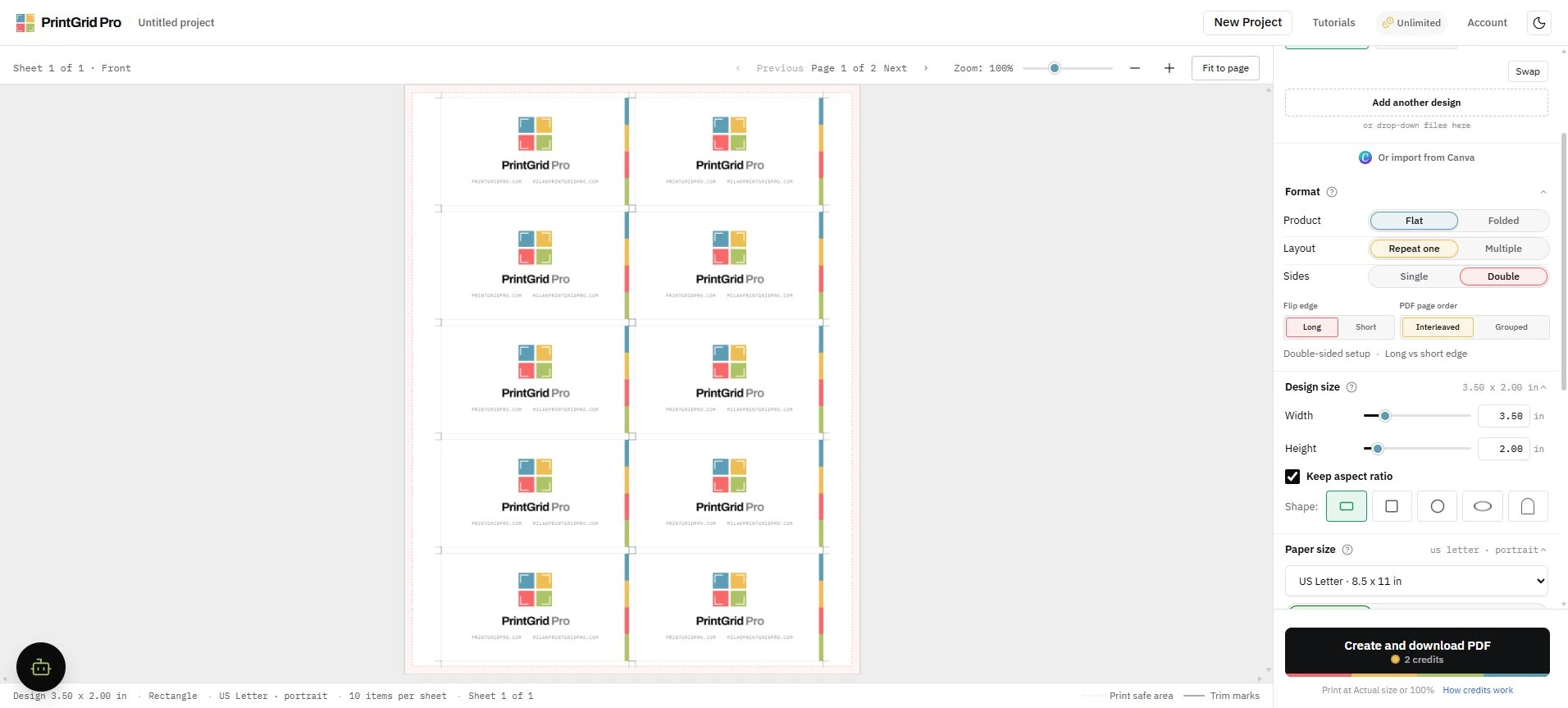
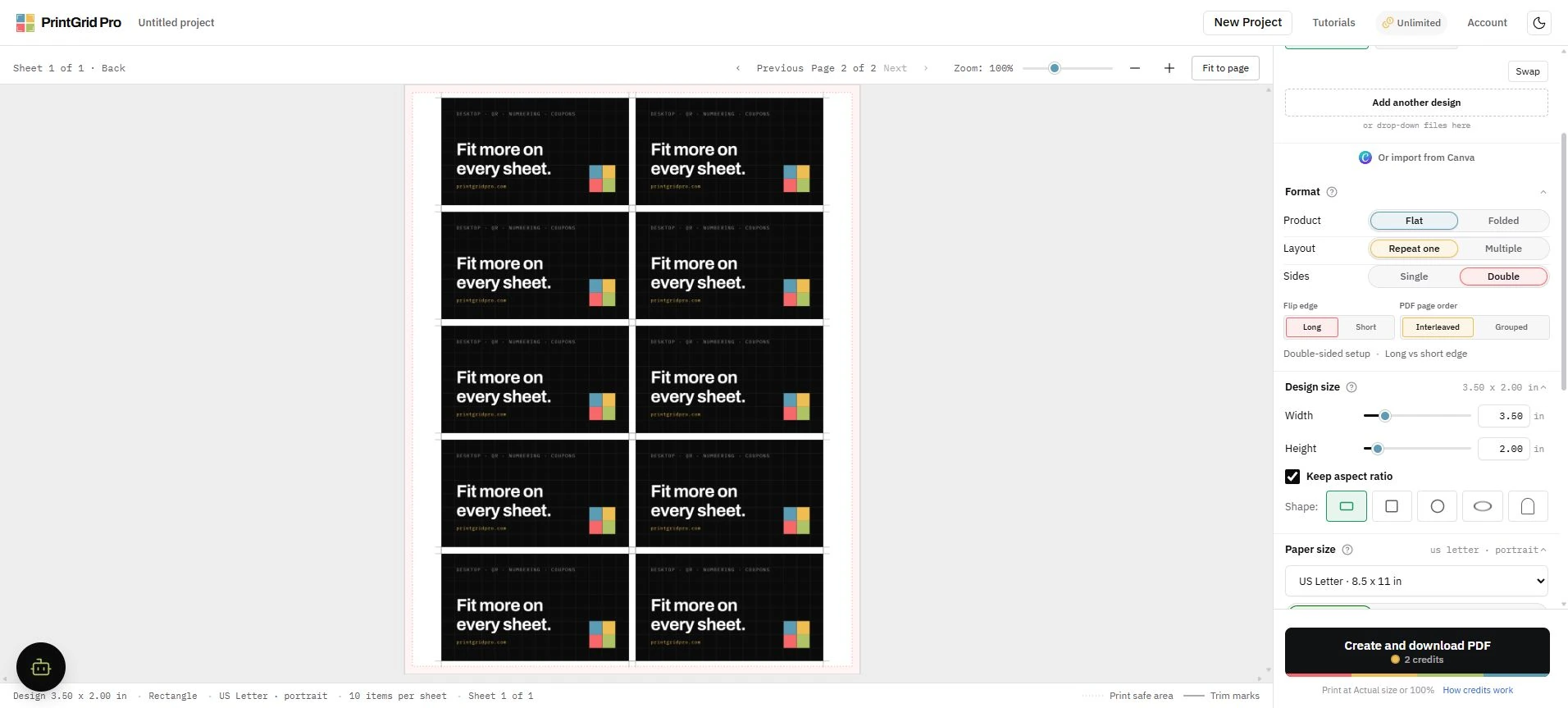
Choose Flat and Double. Add the Front first, then add the matching Back. When you have several designs, repeat that Front-then-Back order for every pair.
The preview shows Front and Back as separate PDF pages. Open both pages and make sure every Back belongs to the correct Front.
Choose how the paper should turn
Long-edge turning works like a book. Short-edge turning works like a notepad or calendar. The right choice depends on the paper direction and how the finished card should be turned.
Do not rotate or mirror the Back to fix an untested printer setting. Choose the flip edge in PrintGrid Pro and verify it with one sheet.
Check both preview pages
Compare the position of the first Front with the first Back, then check the remaining placements. Choose the page order required by your printer or print shop before creating the PDF.
PrintGrid Pro positions both sides as a pair, but a printer can still move the paper slightly during feeding.
Run a one-sheet test
Print the Front at Actual size or 100%. For manual double-sided printing, mark the top edge, reload the same sheet in the correct direction, and print the Back.
Cut or hold the sheet to light and check that the Back is upright and lines up with the Front. Change the flip setting only after this controlled test.
Understand pages and credits
One physical sheet printed on both sides normally creates two PDF pages. Three double-sided sheets create six PDF pages.
Each successfully generated PDF page or side uses one credit. A failed or cancelled export does not consume the reserved credits.