How to Create and Print a Half-Fold Card
Set the closed card size, arrange the Front and Back for a side fold or top fold, and test one folded sample.
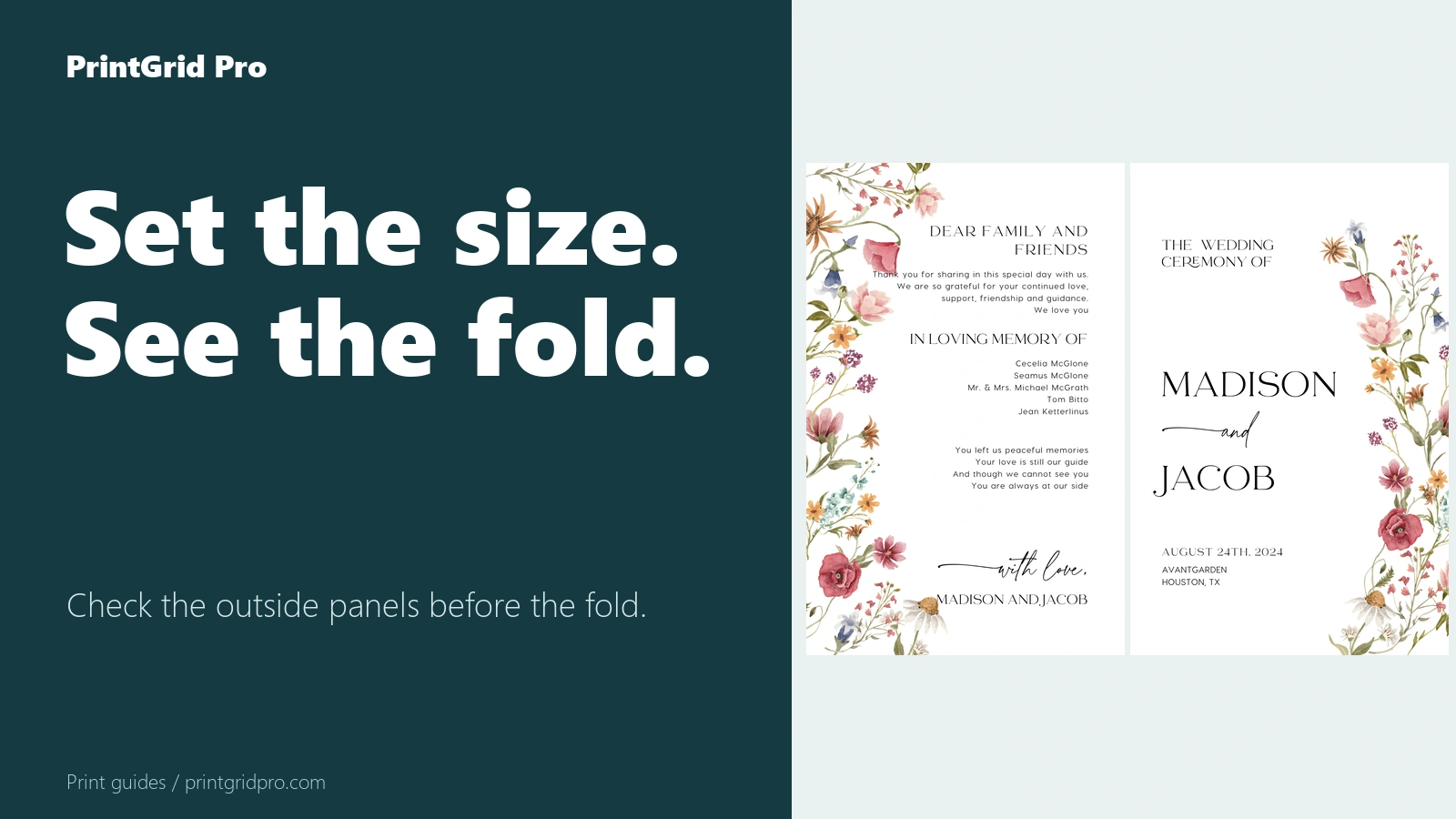
Start with the closed card size
Enter the width and height of the card after it is folded. PrintGrid Pro uses that closed size to calculate the full open piece.
For example, a 5 × 7 in side-fold card opens to 10 × 7 in before margins, bleed, and guides are added. Check that the open size fits on the paper you plan to use.
Choose side fold or top fold
Choose Folded, then add the Front and Back panels. A side fold places Back and Front next to each other. A top fold places the Back above the Front and turns it for the physical fold.
Do not rotate the top Back a second time. Check the preview to see how the open card will look before it is folded.
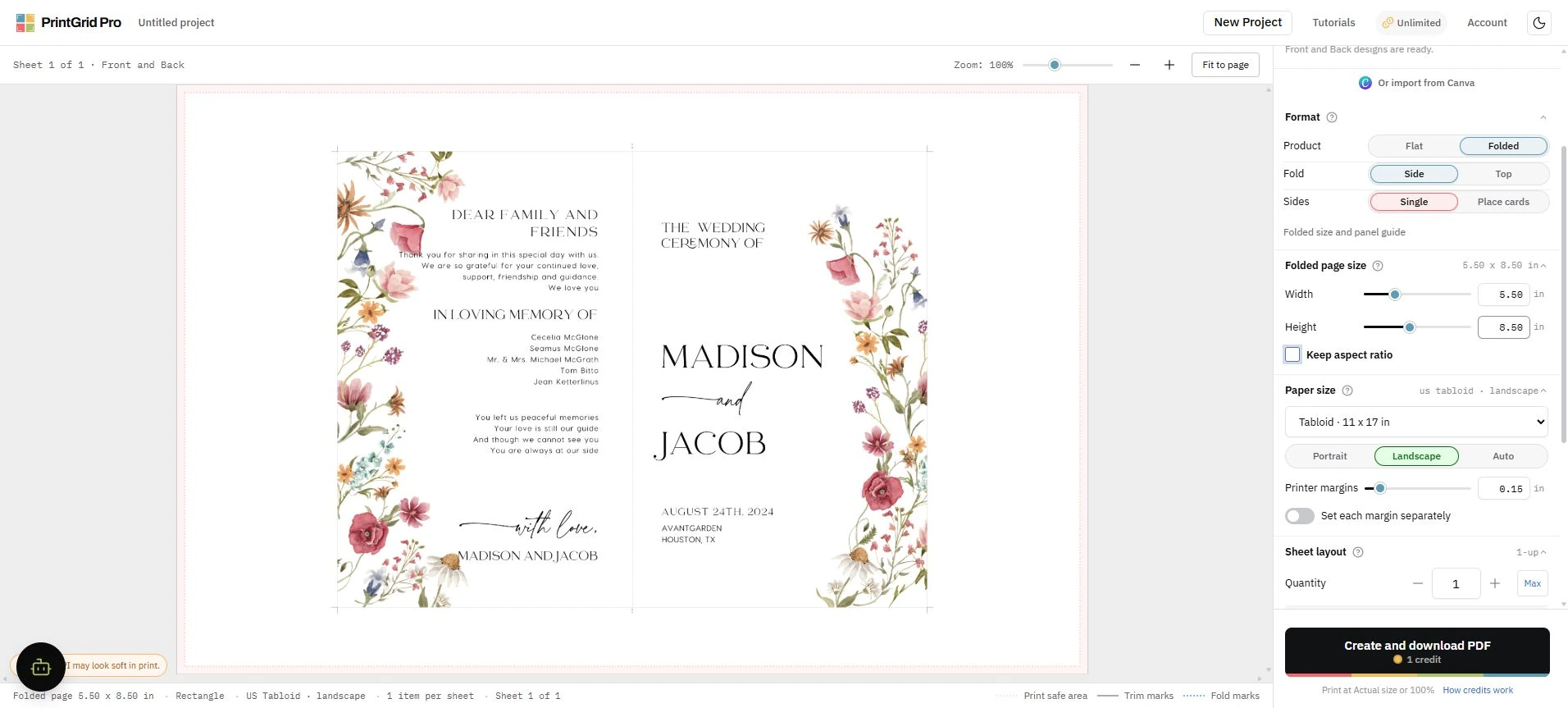
Check the paper and fold mark
Select the Letter or A4 orientation that matches the loaded paper. Margins, bleed, cutting guides, and the open card size all affect whether the card fits.
The short fold marks show where to fold. They stay outside the artwork and do not replace scoring when thick cardstock needs it.
Print, score, and fold one sample
Print at Actual size or 100%, measure the open piece, then score and fold it on the marked line. Check the Front, Back, inside area, and edge alignment before printing the full batch.
This workflow is for a simple half-fold card. Booklets and more complex multi-panel folds need a different setup.
Count both printable sides
A card printed on both sides produces an outside PDF page and an inside PDF page. The editor shows the physical sheet count, PDF page count, and credits before export.
Each successfully generated page or side uses one credit. Reopening the same ready result during its availability period does not use another credit.